When you sign up to DepositFix, these items are automatically built to your HubSpot account.
Payment Property Fields
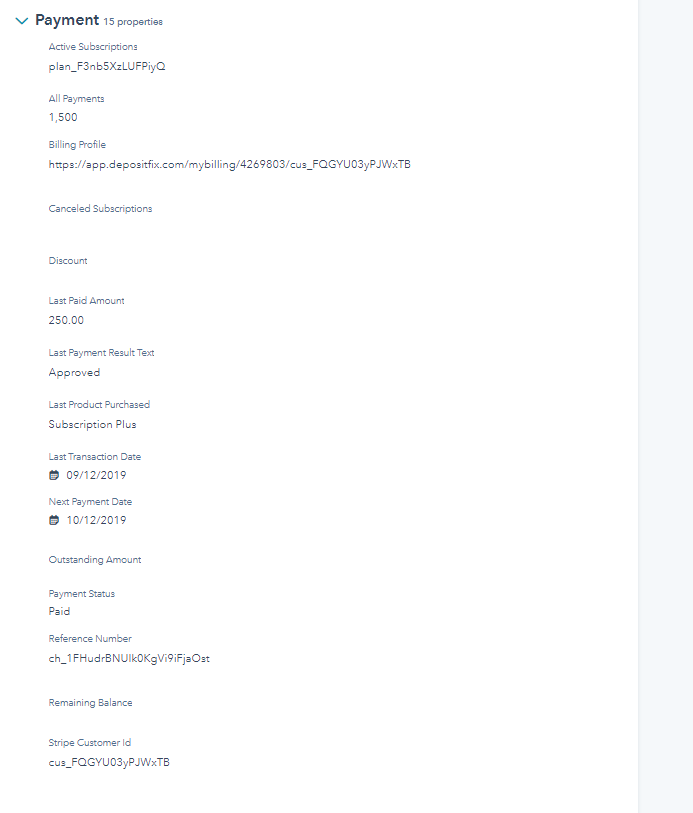
In the Contact settings, you'll see a new Payment group with the fields that will help you search and segment your list based on payment events.
| Active Subscriptions | Shows the all active Stripe Subscription plan/s the contact is under. |
| All Payments | Sums up all payments done through a DepositFix form. Stripe and PayPal included. |
| Billing Profile | A contact-specific unique page that shows payment information. (Available for Stripe payments only.) Click here for more information |
| Canceled Subscriptions | Shows any canceled Stripe Subscription plan. (Available for Stripe payments only.) |
| Discount | Shows the discount name applied to the transaction. |
| Last Paid Amount | Amount of the last successful transaction. |
| Last Payment Result Text | Shows Approved for successful transactions or the Error Message returned by Stripe or PayPal. |
| Last Product Purchased | Shows the name of the last purchased product. For Single Payments, the name is based on the Form Builder. For Subscription, the name is based on Stripe. |
| Last Transaction Date | Shows the date of the last successful or failed transaction. |
| Next Payment Date | Shows the schedule of the next payment for subscription plans. (Available for Stripe payments only) |
| Outstanding Amount | Set the initial amount and every payment done will automatically deduct and update this amount. |
| Payment Status | Shows the status of the latest transaction whether 'Paid' or 'Failed'. |
| Reference Number | Shows the generated reference number from Stripe and PayPal. This is useful for creating receipts. |
| Remaining Balance | Currently not in use. |
| Stripe Customer Id | Shows Stripe Customer ID |
This is what your contact properties should look like:
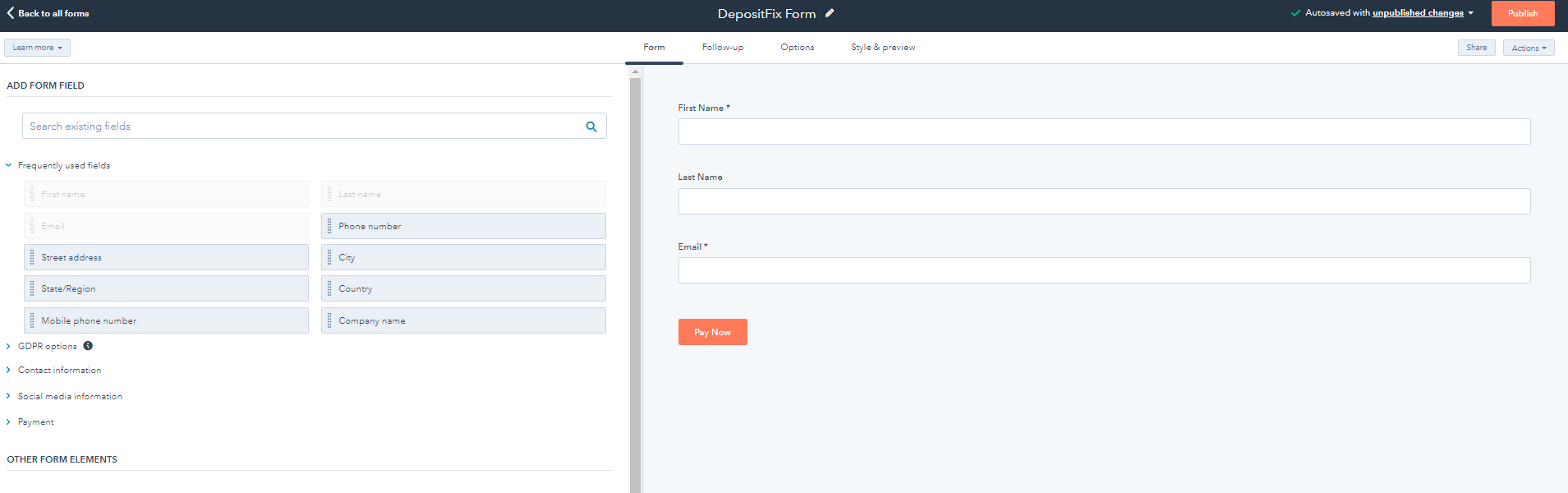
HubSpot Form - 'DepositFix Form'
DepositFix Form is a basic HubSpot form that you can edit and use when building your payment form. This form contains the fields: First Name, Last Name, and Email.
Note: Email is always required on a payment form. You can use any of your existing (or new) HubSpot forms.
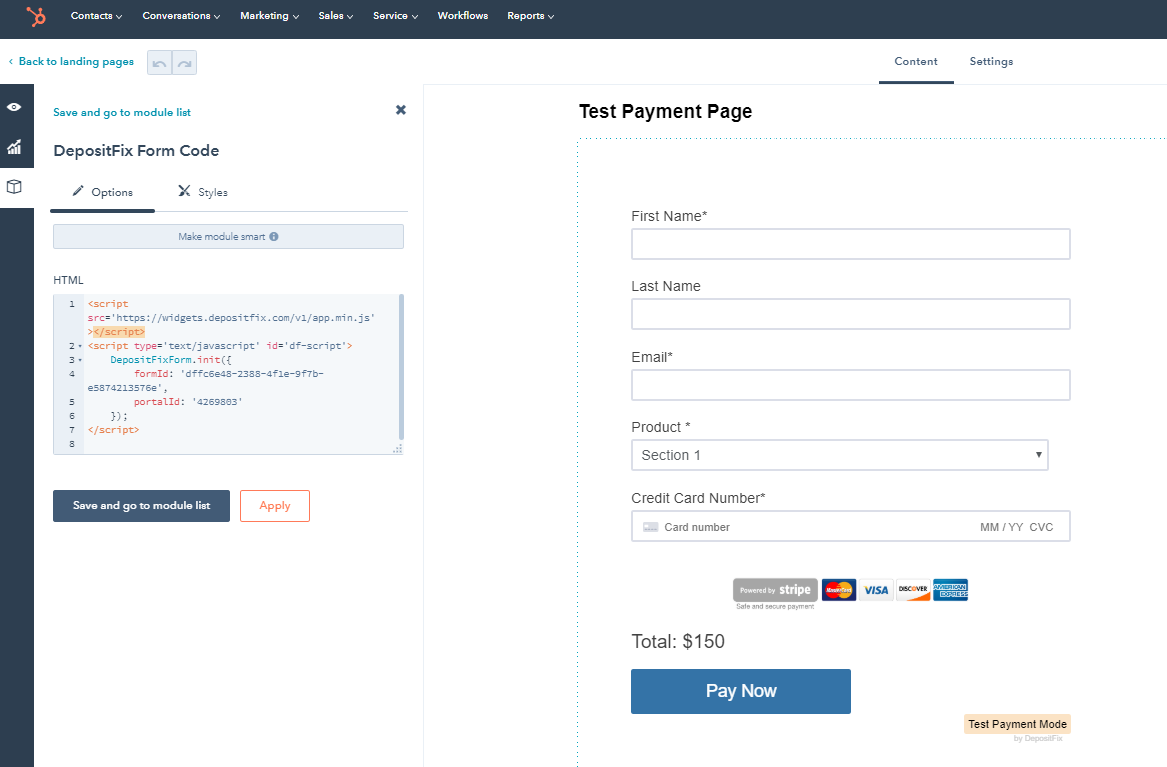
Landing Page – 'Stripe Payment Page'
This page contains an HTML block with a generic DepositFix payment form code. Once you have built your payment form, you can copy the embed code here.
To test the actual payment process, publish this page and open it in your browser (make sure to use HTTPS:// link).
Note: DepositFix can be used on any HTML supported sites.
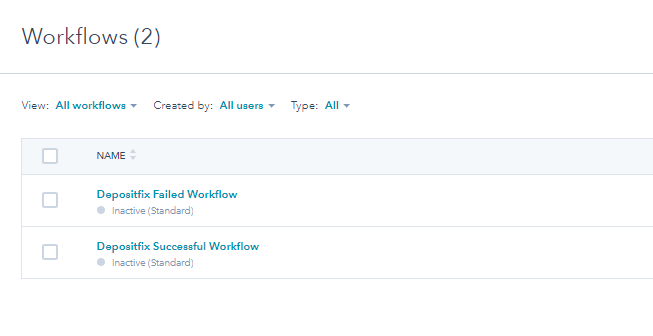
HubSpot Workflows - DepositFix Successful and Failed Workflows
Deposit creates two sets of workflows for post transactions activity:
Successful Workflow - Used for successful payments using the form.
Failed Workflow - Used for failed transactions.
You can also use your own workflows and use DepositFix timeline events as triggers.
This is commonly used for sending receipt emails or and to notify the team about the transactions. For more information on workflows, you can go to Step 4: Workflows and Post Form Submission