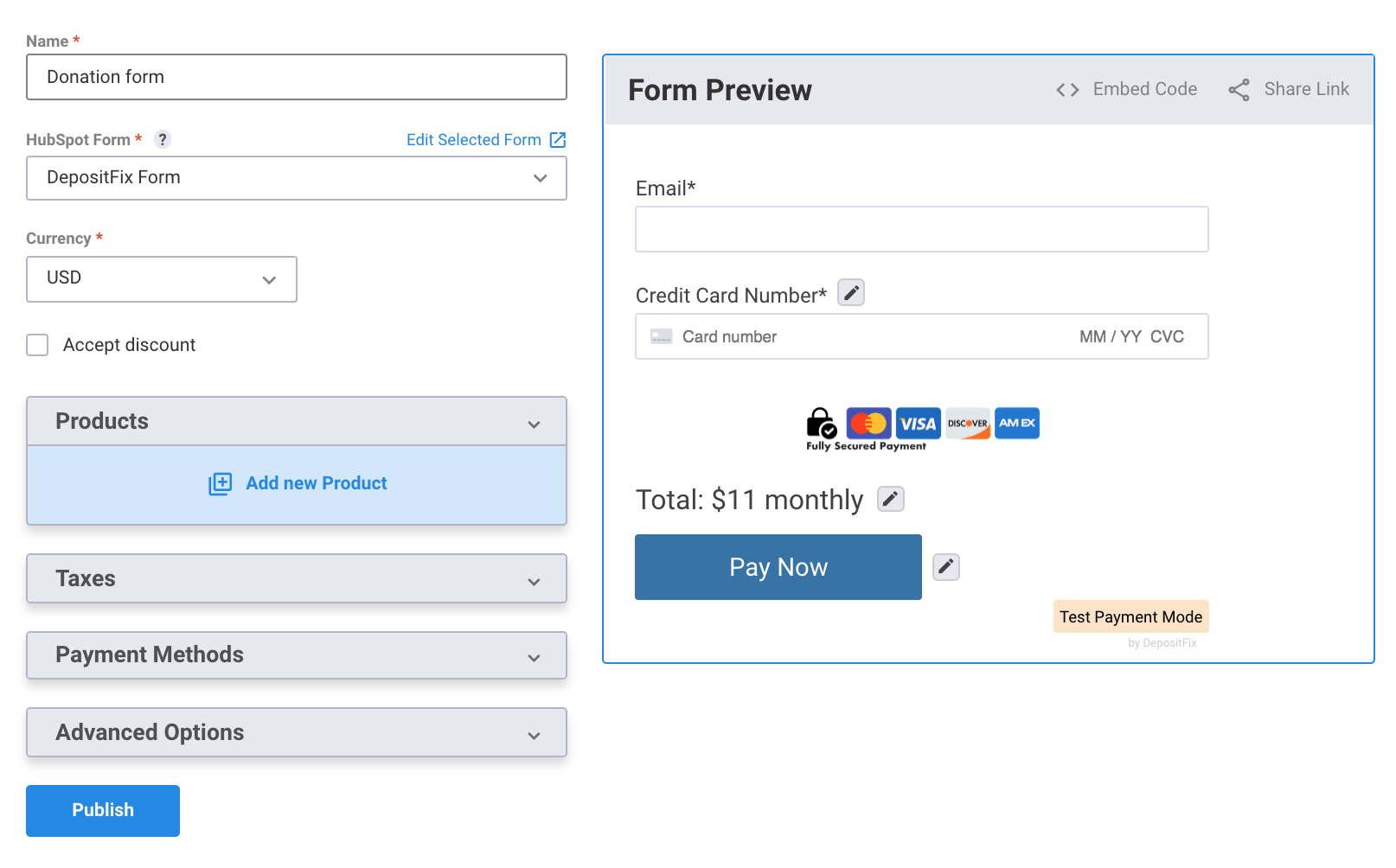
Now that you have your base HubSpot form ready, it's time to upgrade it to accept and capture payment information with DepositFix.
Note: Any changes made to DepositFix forms don't affect your original HubSpot form.
Create a New Form
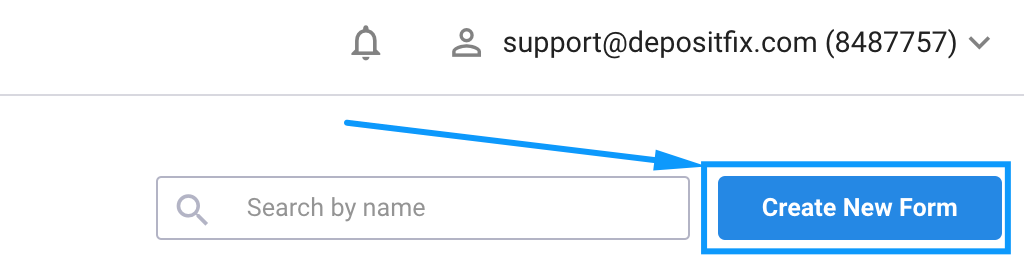
1. From your DepositFix dashboard, go to forms. and Click on Create new Form.

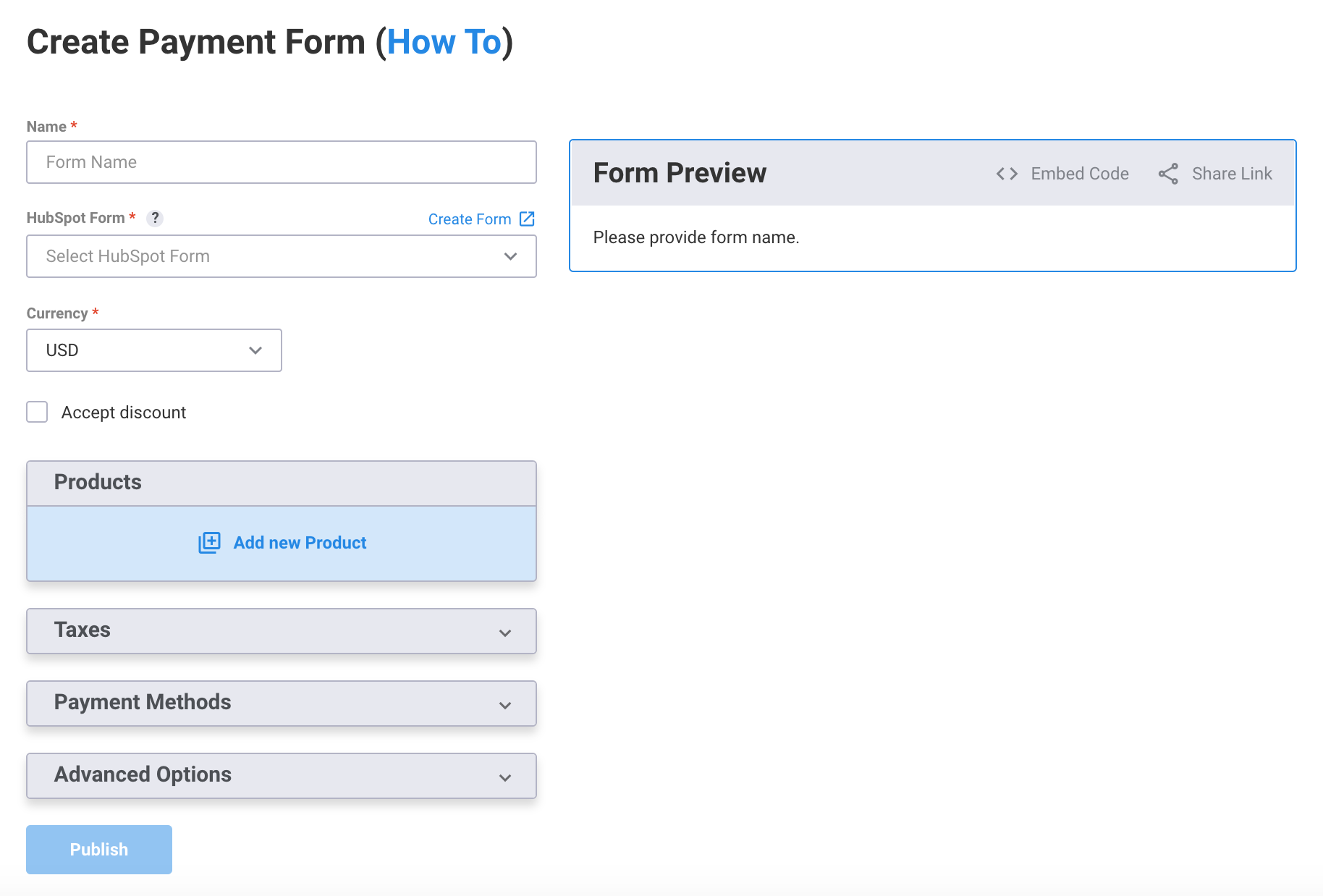
2. This will open up your DepositFix form builder.
General Settings
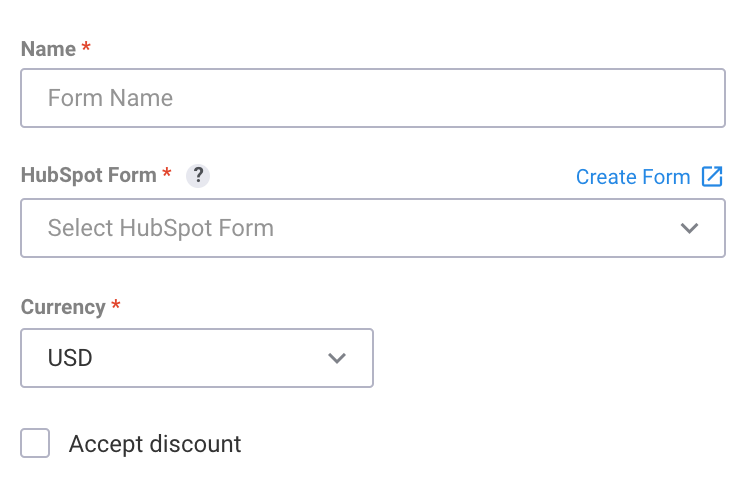
Name - This is the name of the DepositFix form you will create. The form you will create can be accessed through the DepositFix app by its saved name.
HubSpot Form - This will list all the available forms on your HubSpot portal. Choose the one that you are converting and adding the payment fields to.
Currency - This is where you set the currency of the form, you can select any currency from the dropdown list, and you can select different currencies for different forms.
Accept discount - This checkbox will add the ability to accept coupons and discount codes to your form.
Products
The products section is where you can add any products that you want to offer on your form. You can add one or multiple products, of different types.
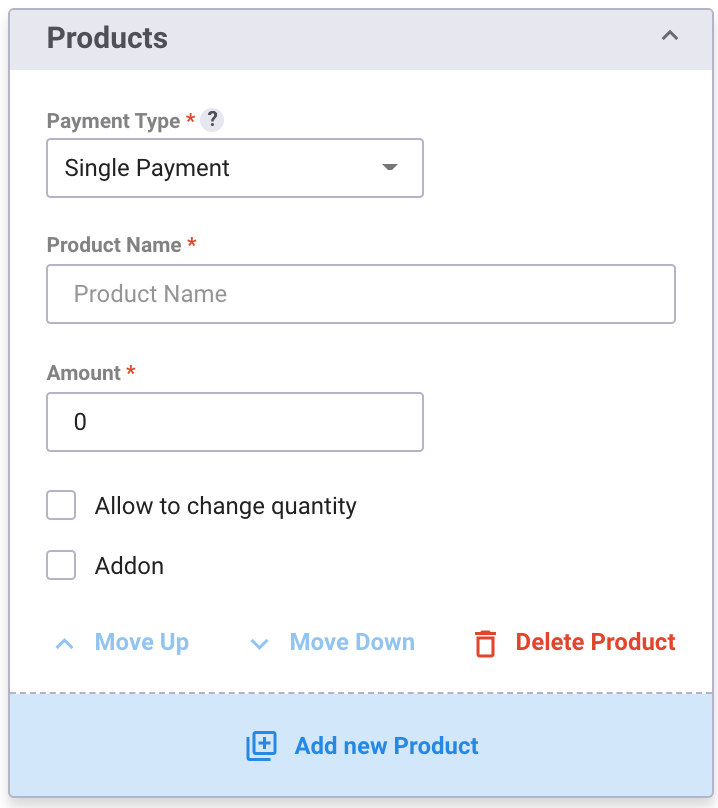
| Payment Type | Choose the payment type you want to build on, from the dropdown, select Single, Subscription, Donation, or no payment. |
| Product Name | The name of the product that will appear on your Form and your HubSpot account. |
| Amount | The value of the product you are selling. |
| Allow changing quantity | Allows your customers to choose the quantity of the product they want to purchase. |
| Optional | This turns your product into an optional product that your customers can buy. |
| Add new product | Opens another Product dialogue where you can add another product to the form. |
*Add on vs Add new product - When the product is completely optional, like an up-sell option, choose add-on. When the additional product is required to be purchased on this form, choose Add new product.
If you have multiple products with the same payment type (e.g. Subscription), then they will be grouped into a single list to allow your customer to choose from.
If you have different product types (Single Payment + Subscription), then your customer will be charged for both products.
Taxes
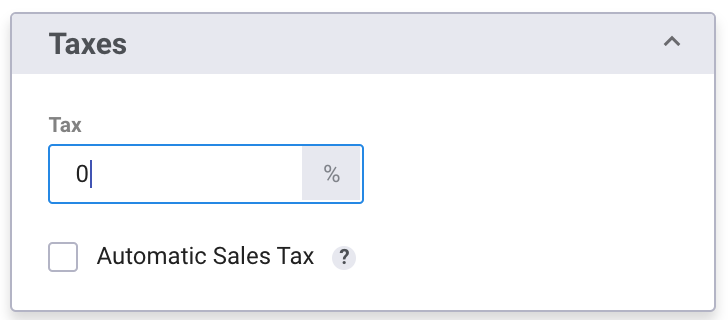
This is where you can set a tax amount to be applied to your products. You can either select a flat tax percentage that applies to all customers or enable automatic sales tax which calculates tax dynamically based on location.
Payment Methods
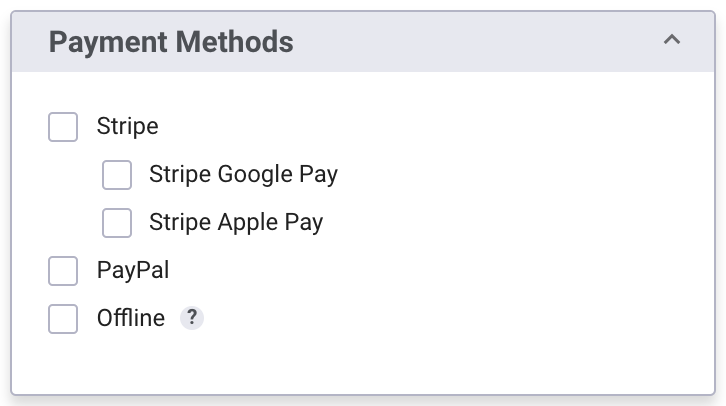
Allows you to choose which payment gateway you want to process the payment with (Stripe, PayPal, or offline payments). You can choose multiple payment methods on the same form.
Advanced Options
This is where you set up some advanced form settings, like adding custom CSS, or custom Javascript code.
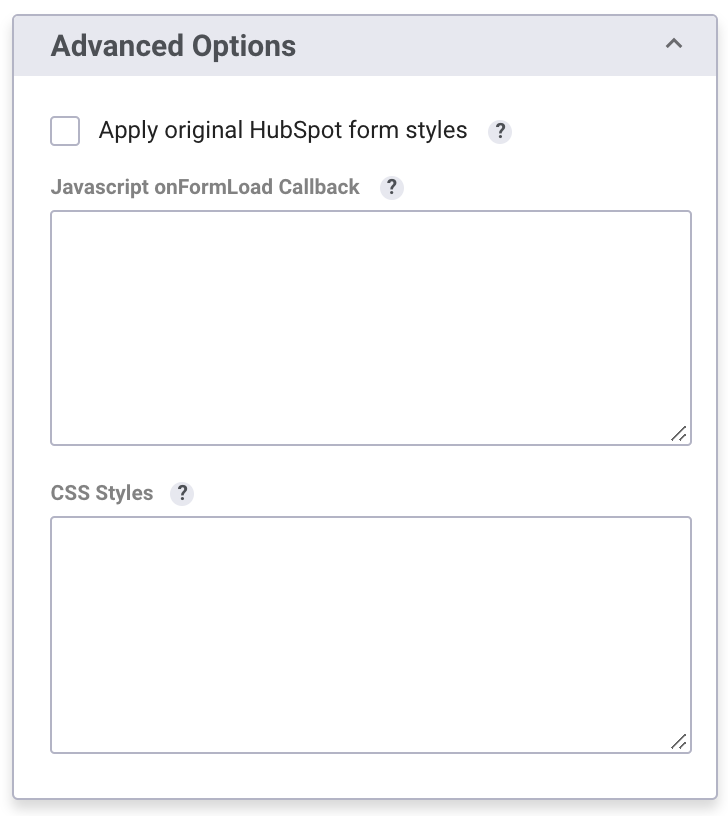
Apply Original HubSpot form styles - This option maintains your original HubSpot form styles and matches DepositFix elements to the same style.
JavaScript callback 'onFormLoad' - This callback will be triggered after the form is rendered. This is useful to add some custom functionality to the form or change some features dynamically (e.g. change the price depending on the selected option).
CSS Styles - Allows you to add custom CSS styles to your DepositFix form.
Form Preview
This is where you can preview your form, get your embed code, or get your direct form link.
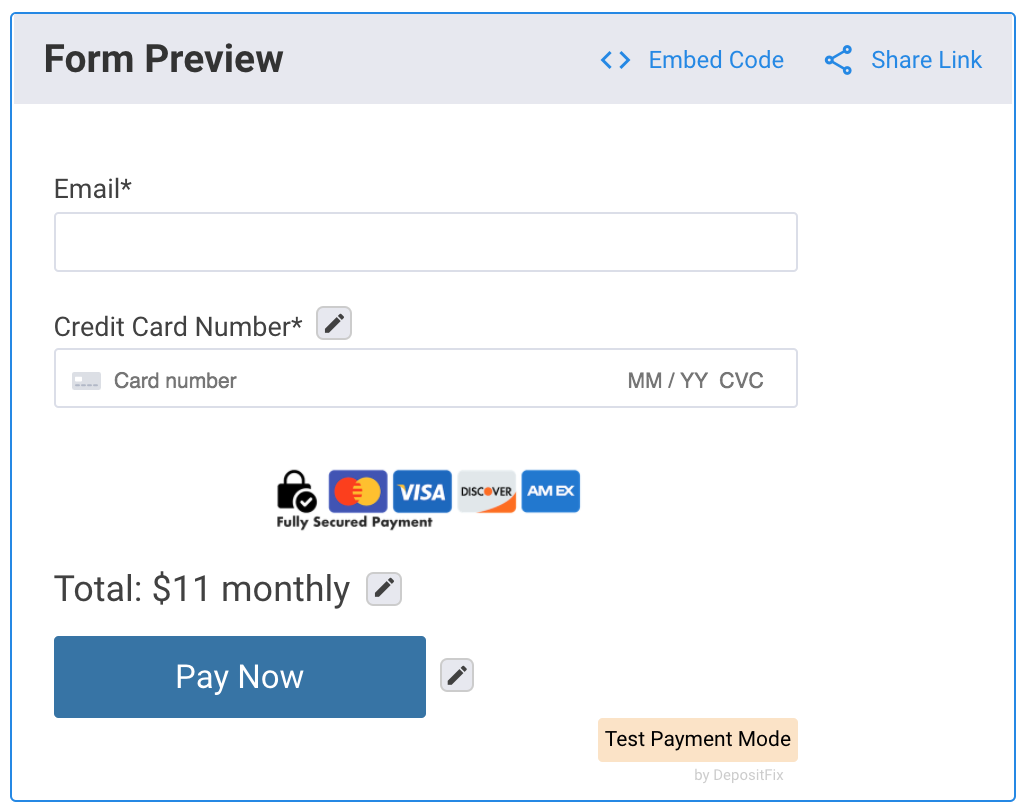
A completed sample form: