You can use DepositFix forms to sell single or multiple products. Below are overviews on how to create single and multiple product forms using the form builder.
- Single product forms
- Single Payment
- Subscription
- Donation
- No payment - - Multiple Single Payment
- Multiple Subscription
- Single and Subscription
- Donation and Single Payment or Subscription
Single Product Form
This is the simplest way to create forms, from the form builder, you can select single payment, subscription, donation, or offline payment.
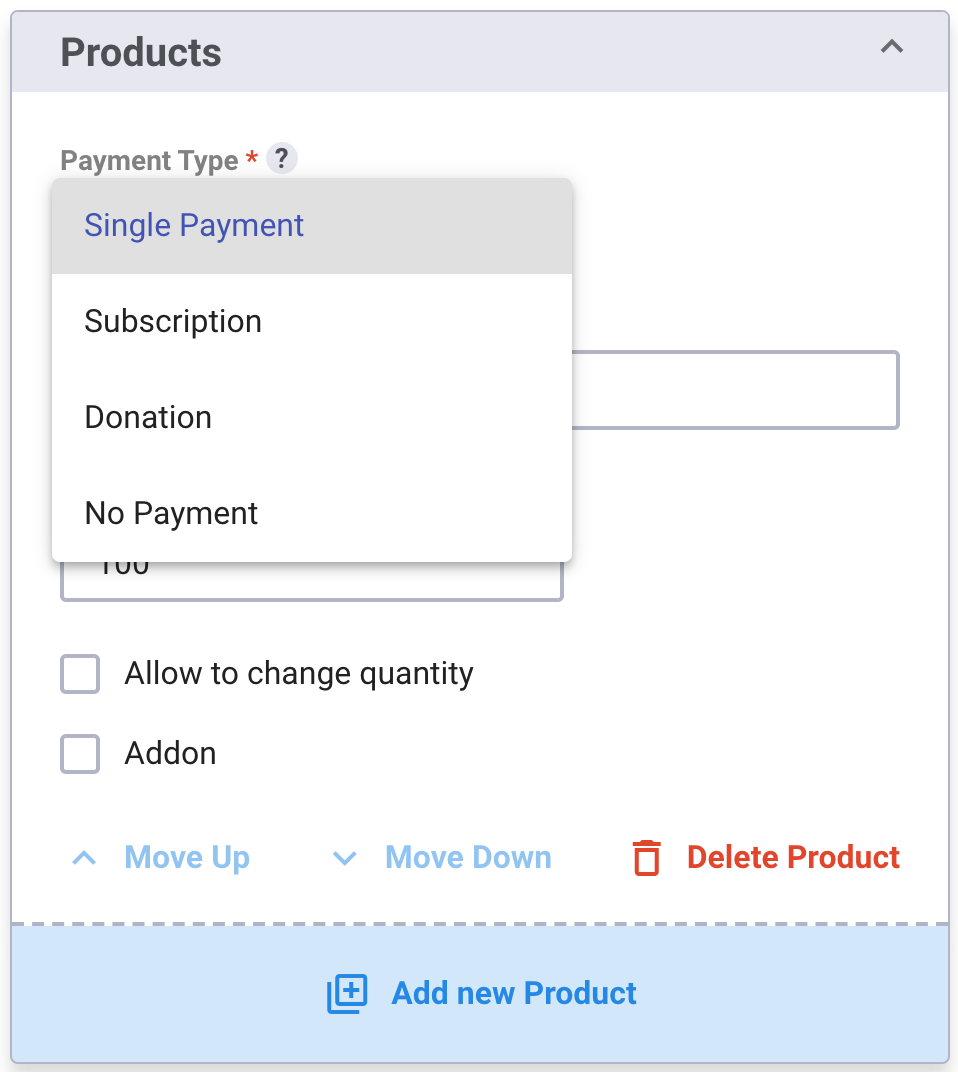
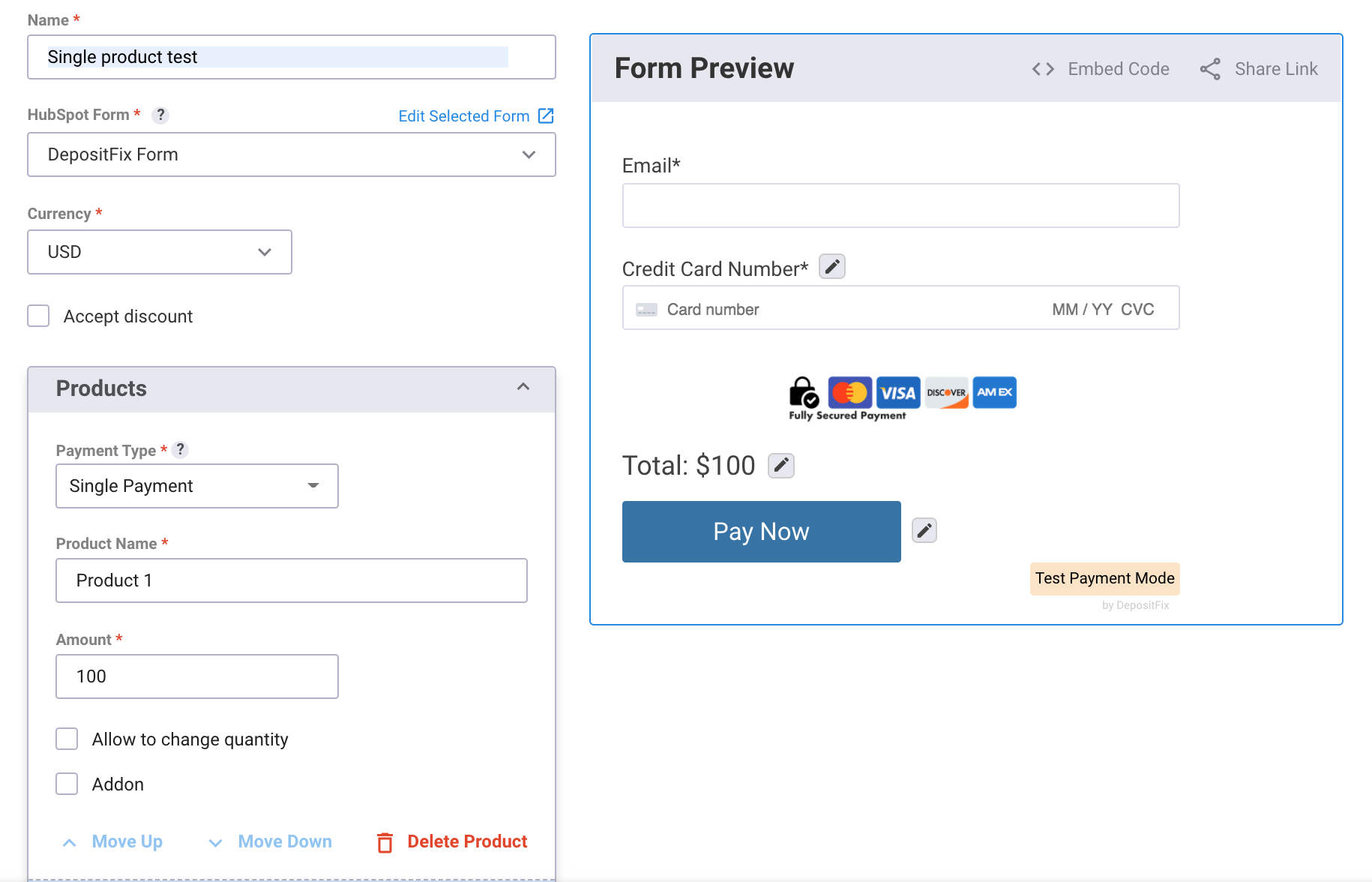
Single Payment - You can use this option for a pre-defined amount single transaction set on your payment form. Commonly used for events, tickets, fees, one time memberships, courses and simple one time charges your customers can settle on your landing page.
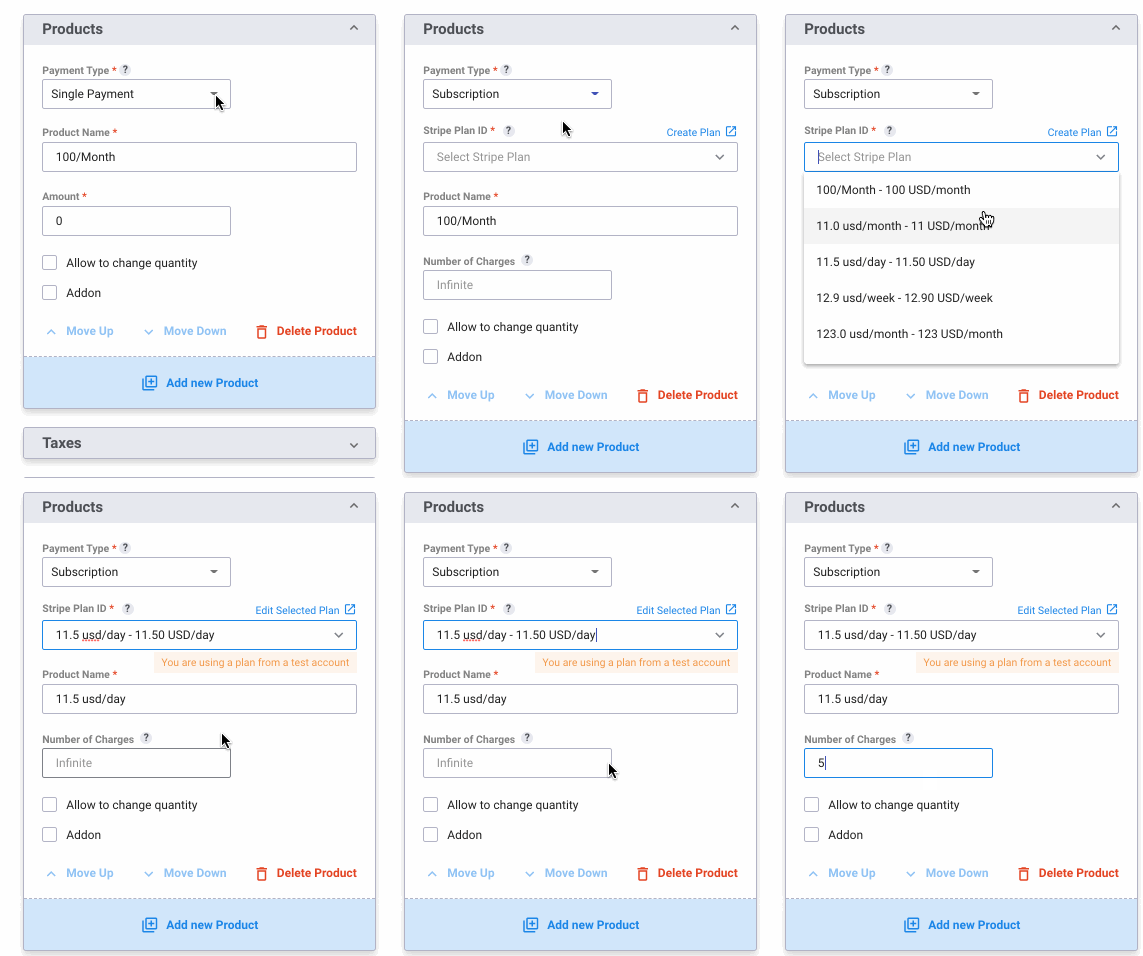
Subscription - You can use this option for pre-defined amount recurring transactions set on your payment form. The subscription plans must be created on Stripe first, and DepositFix will pull the information and set up your payment form.
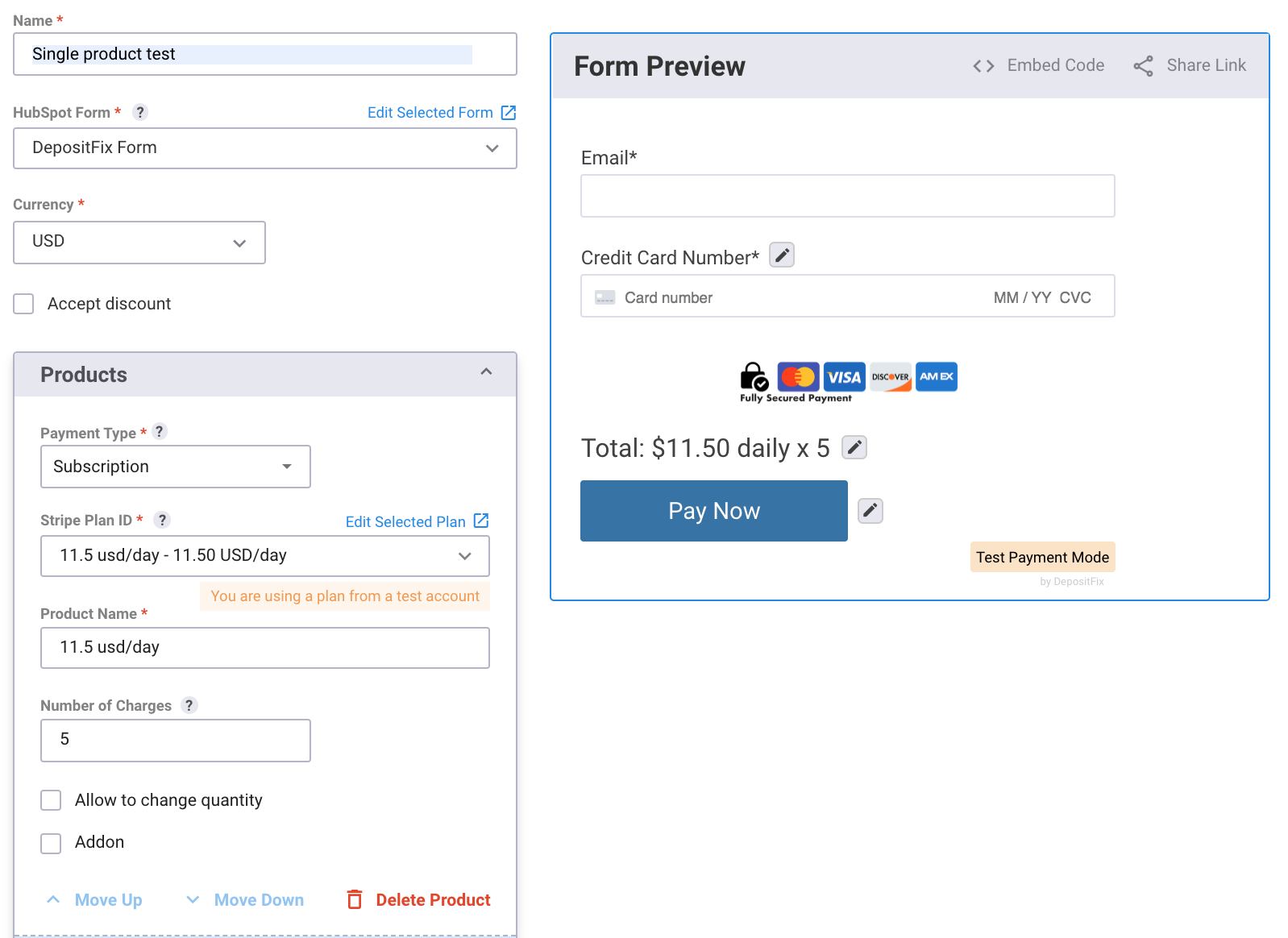
The Number of Charges option allows you to set the number of times your customer will be charged and cancels the subscription automatically after the last payment.
DepositFix currently doesn't support PayPal subscriptions.
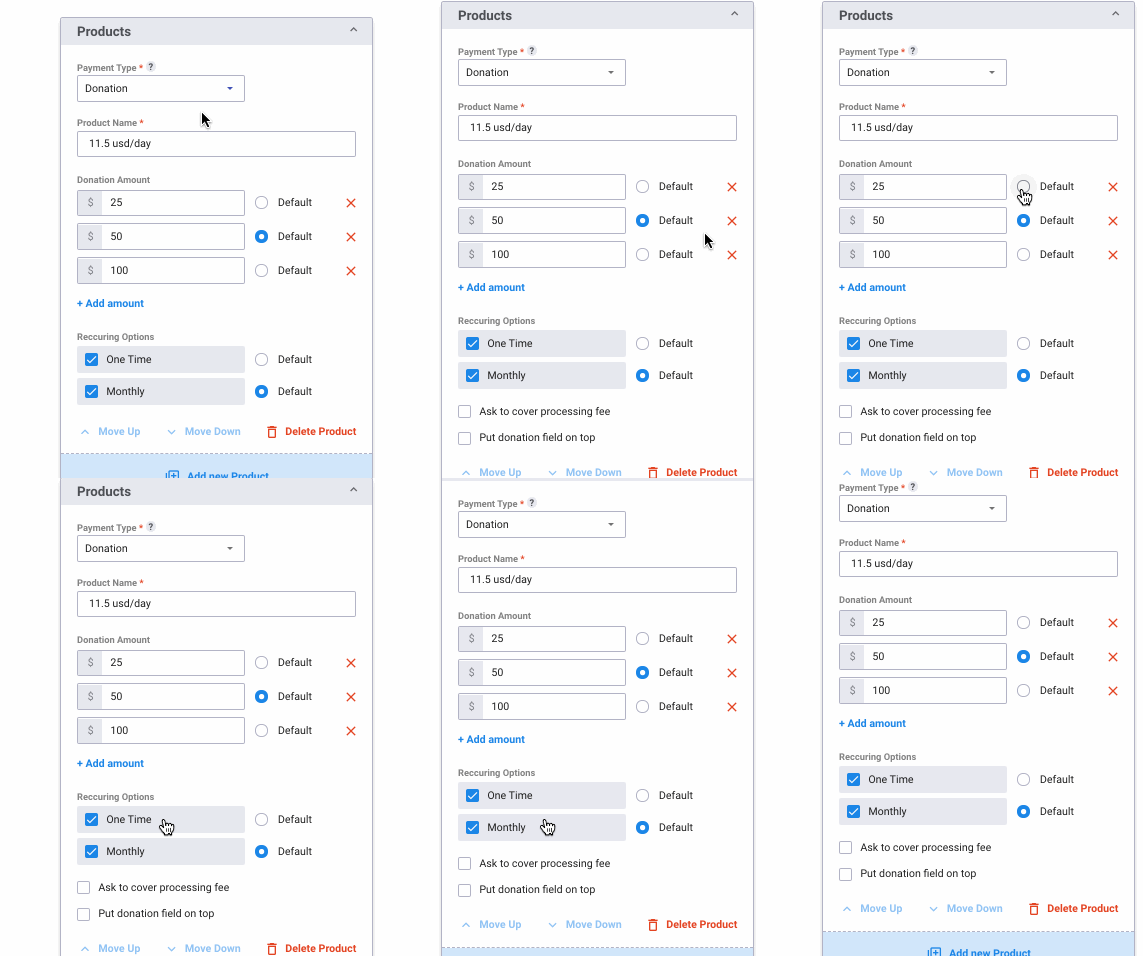
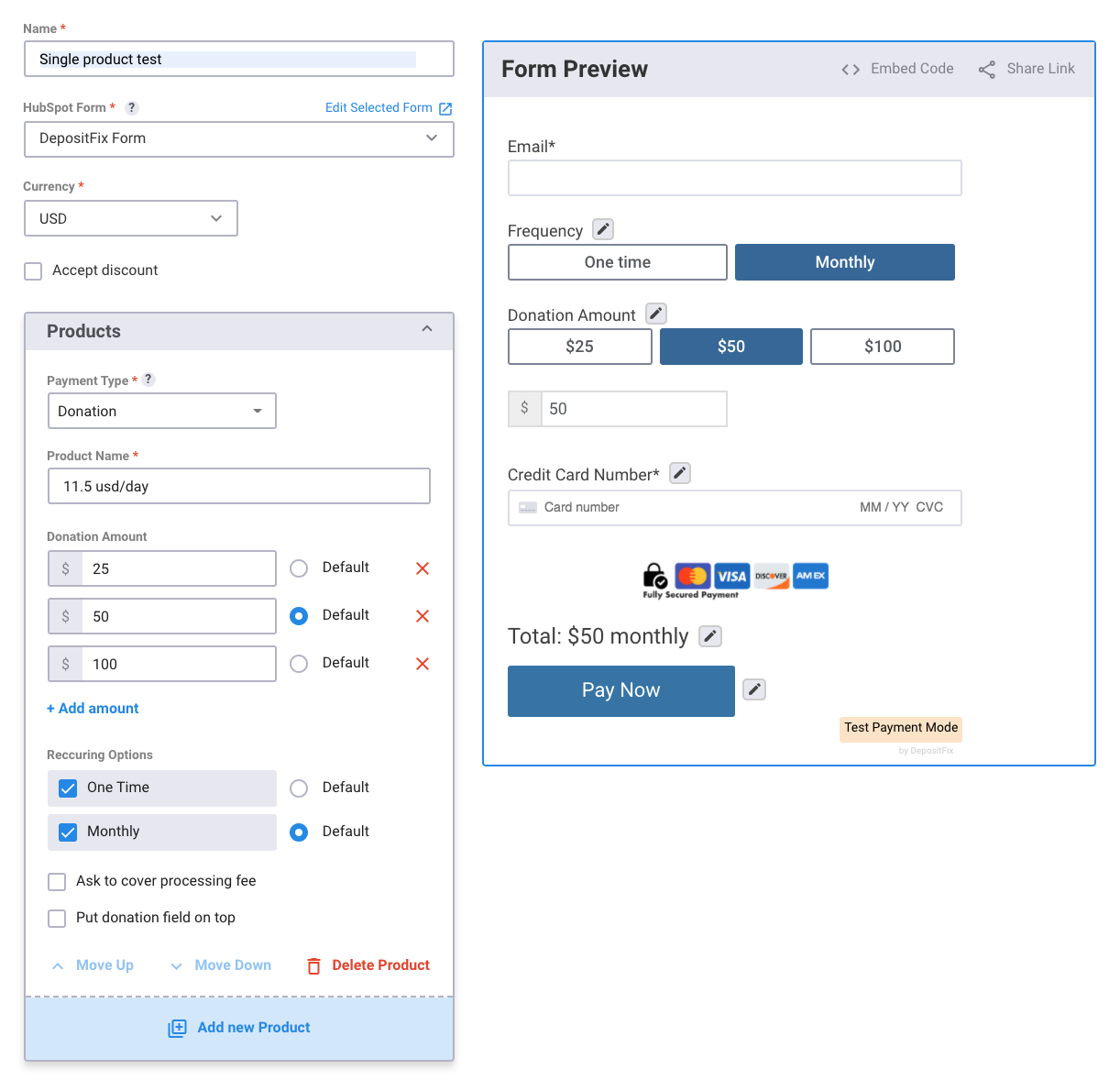
Donation - This option allows you to create pre-defined amounts as well as allow customers to manually enter the amount they want to donate. You can also set the interval to single payment or monthly recurring payments.
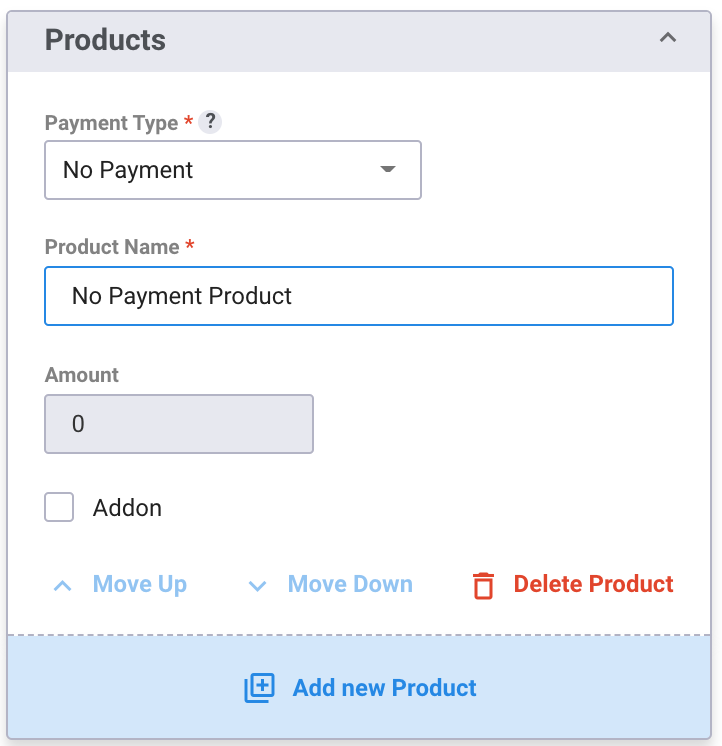
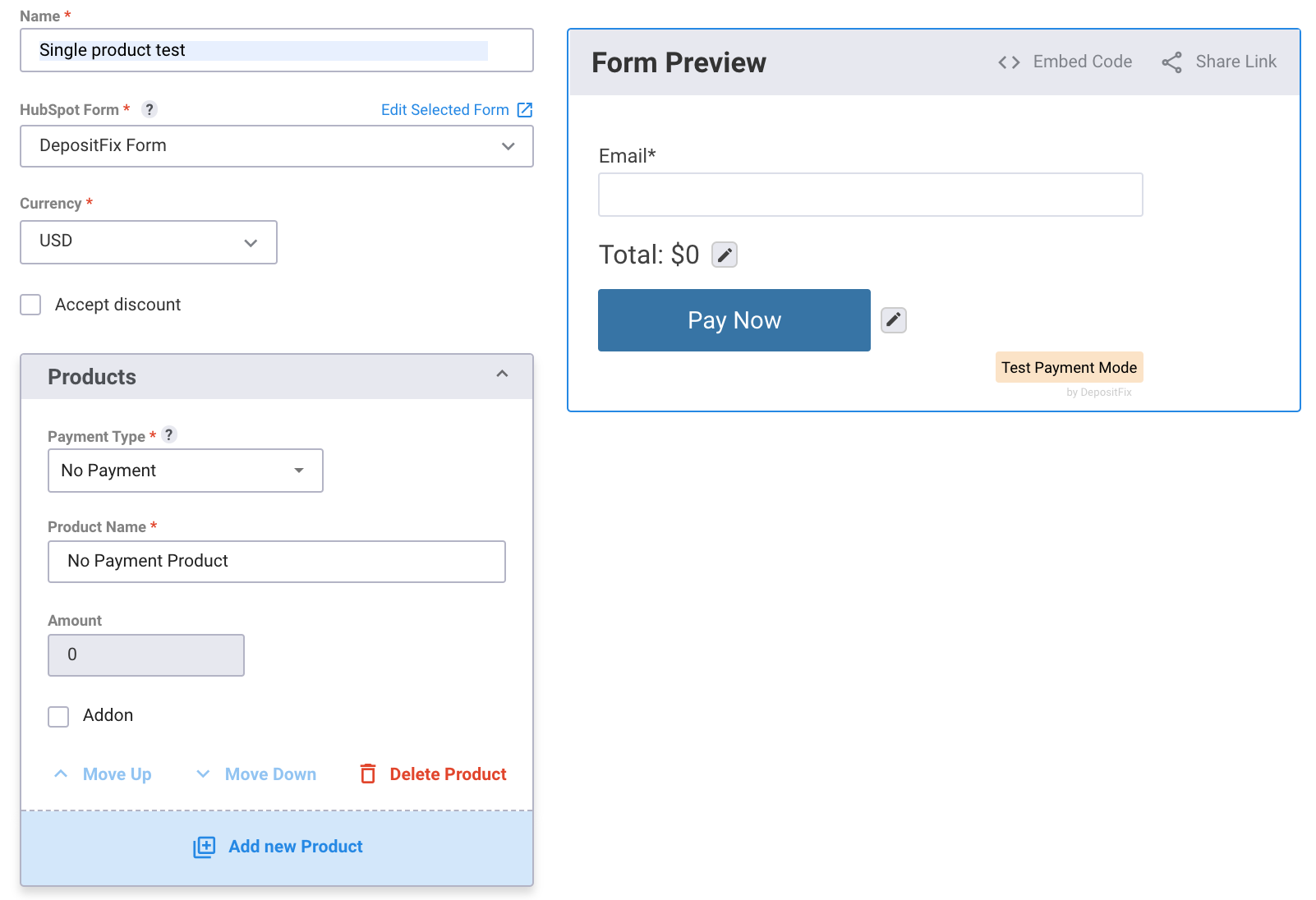
No Payment - Allows you to add products that don't require payments (e.g. subscribe to a newsletter).
No Payment forms will not have any credit card fields or payment fields on them.
Multiple Product Forms
You can build multiple product forms the same way you would build a single product form, the way the products are grouped together depends on the product type(s).
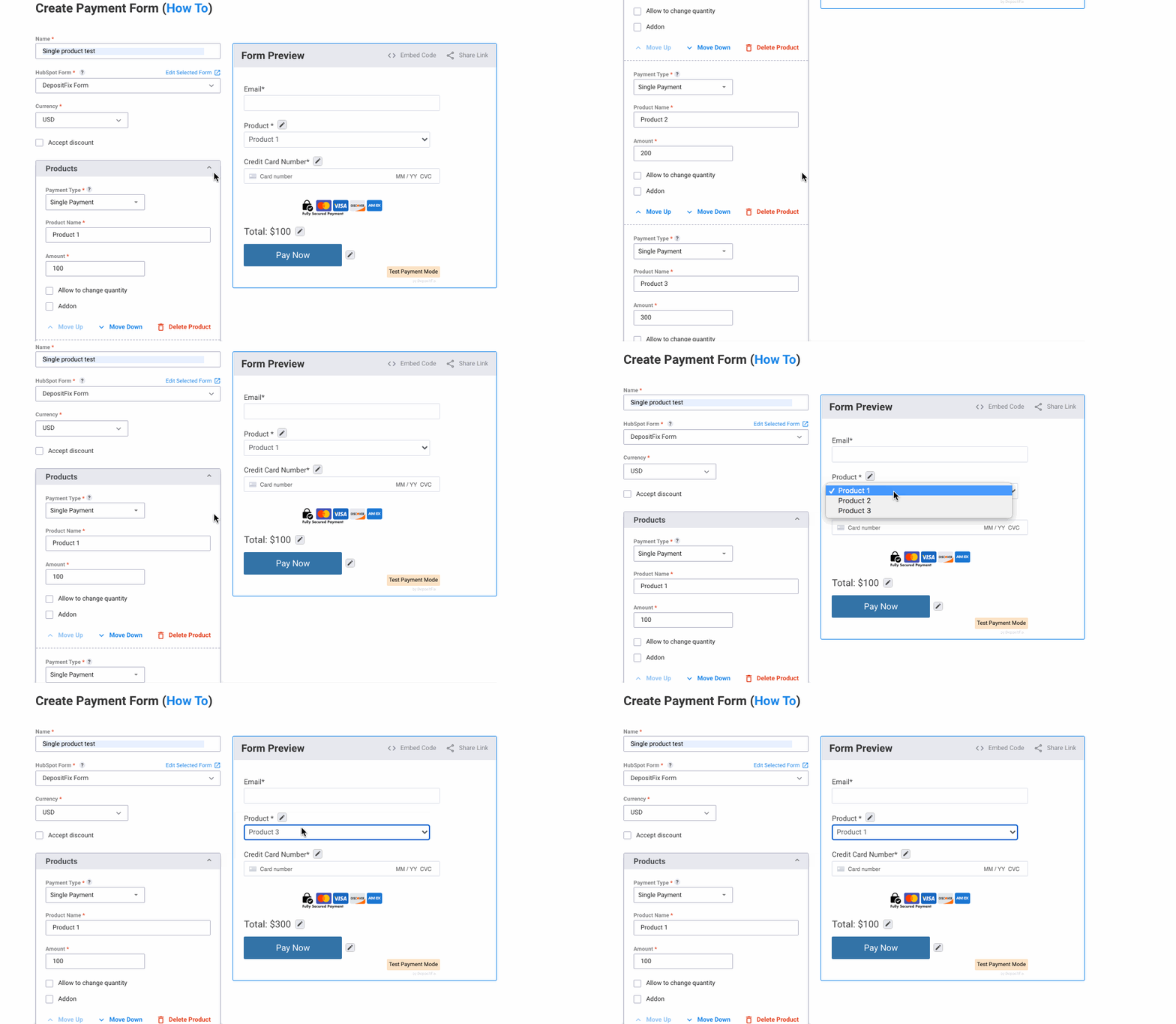
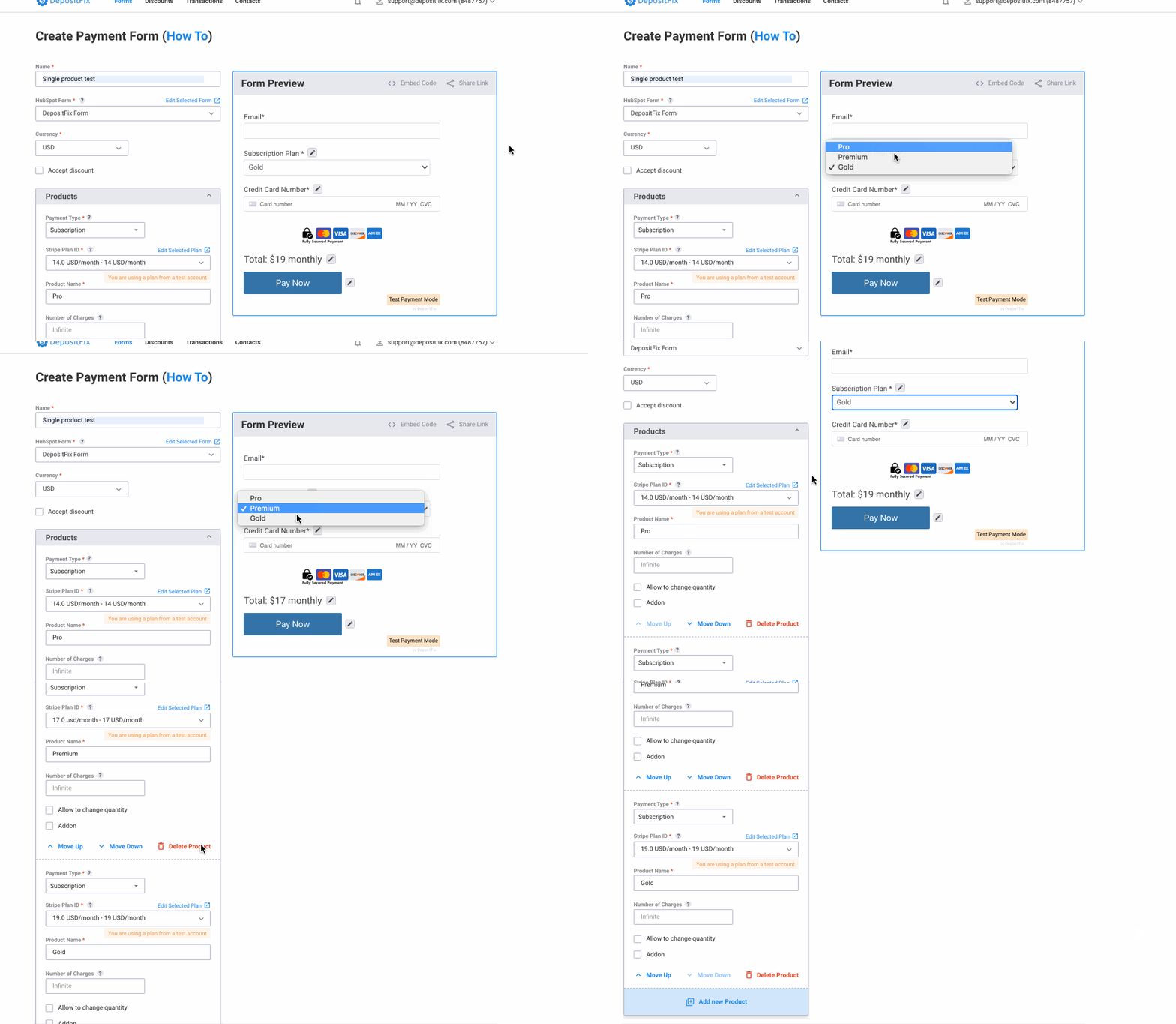
Similar to single products, multiple subscription products (and any products of the same type) are grouped together in a dropdown. Your customers can only select one main product, and as many add-ons as they would like.
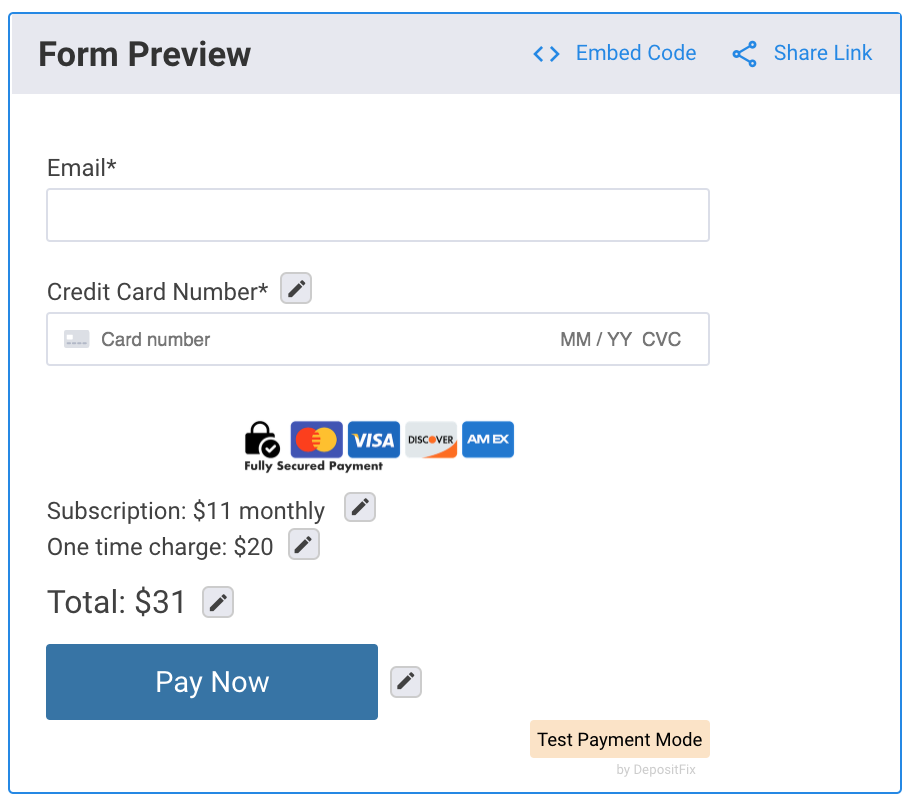
Single Payment + Subscription
If you have a single payment and a subscription product, both products will be selected on your form.
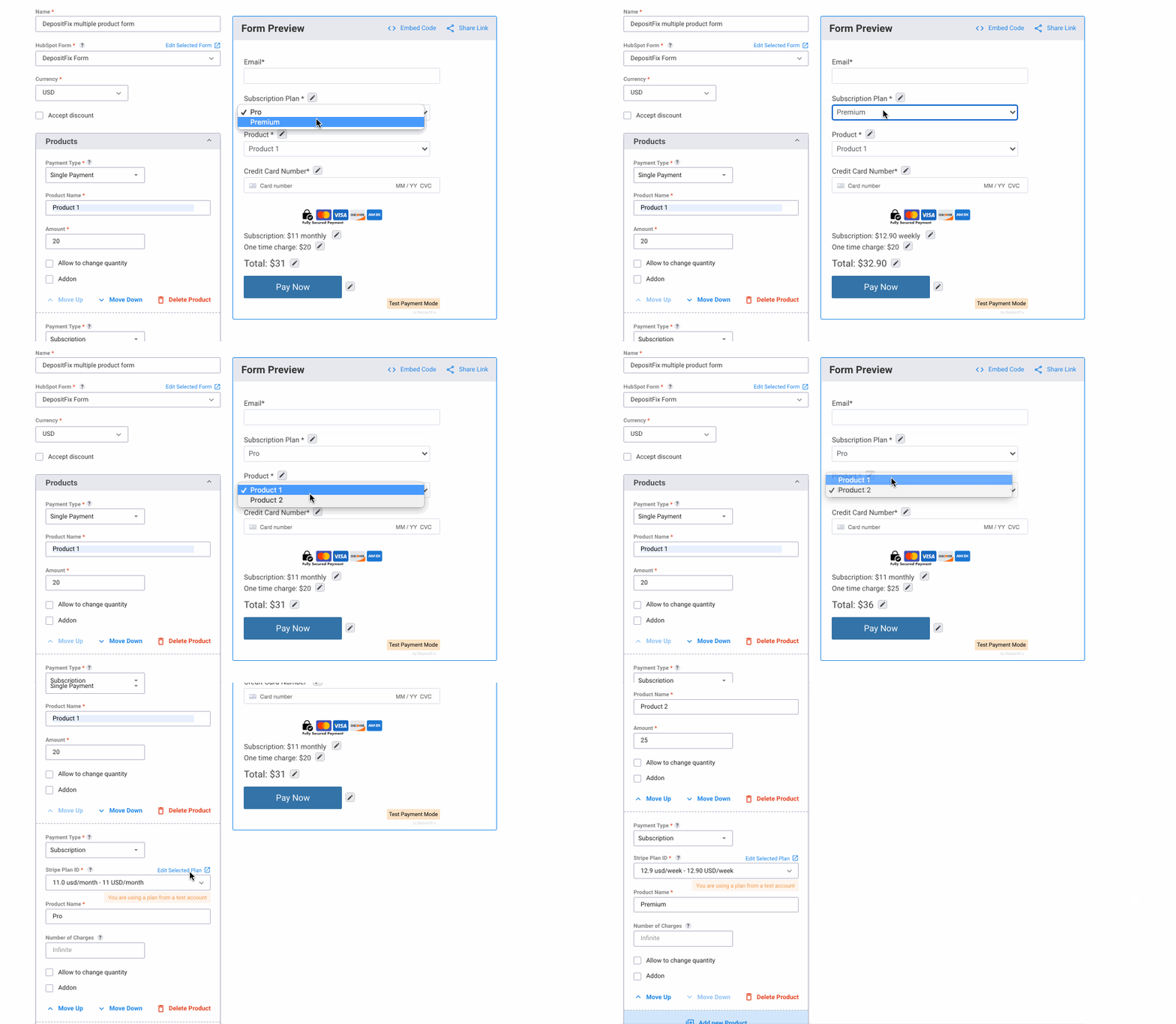
If you have multiple subscription and multiple single payment products, you will be able to see a separate dropdown for each product type.
Donation + Single Payment or Subscription
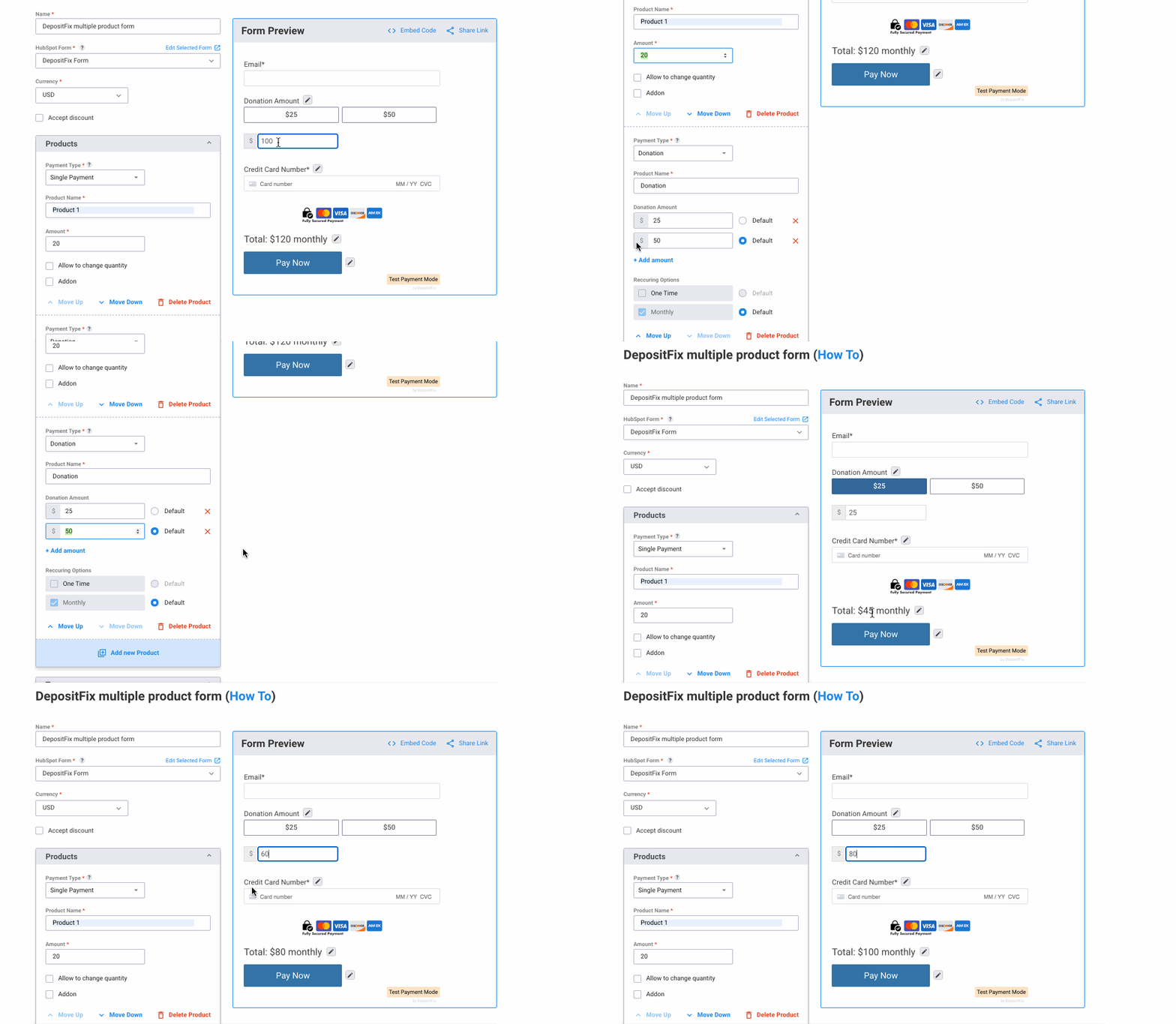
If you have a donation product combined a single payment or a subscription in the same form, your form will apply the value of the single or subscription product to total automatically, while you're able to change the donation amount on the form itself.
In the example below, you will see that the total amount is always 20$ more than what you select in the donation field, that is because the single product amount (20$) is added to the total.
Next: Cloning an Existing Form