You can allow your customers to change and update their subscriptions from the billing profile. Furthermore, you can control which subscriptions they can change into.
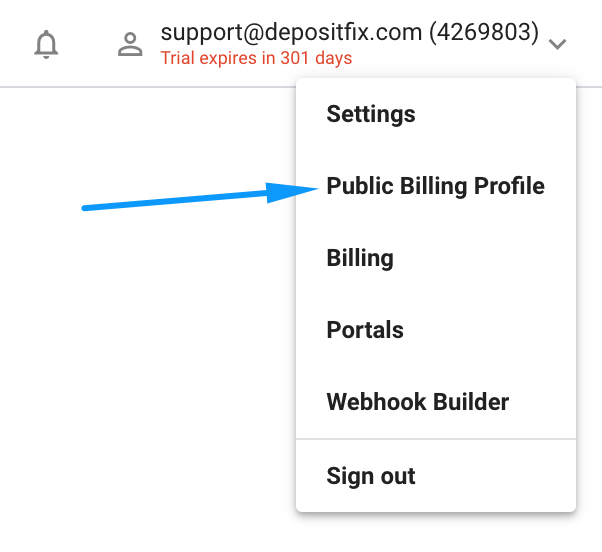
1. From the dashboard, click on your name and select Public Billing Profile
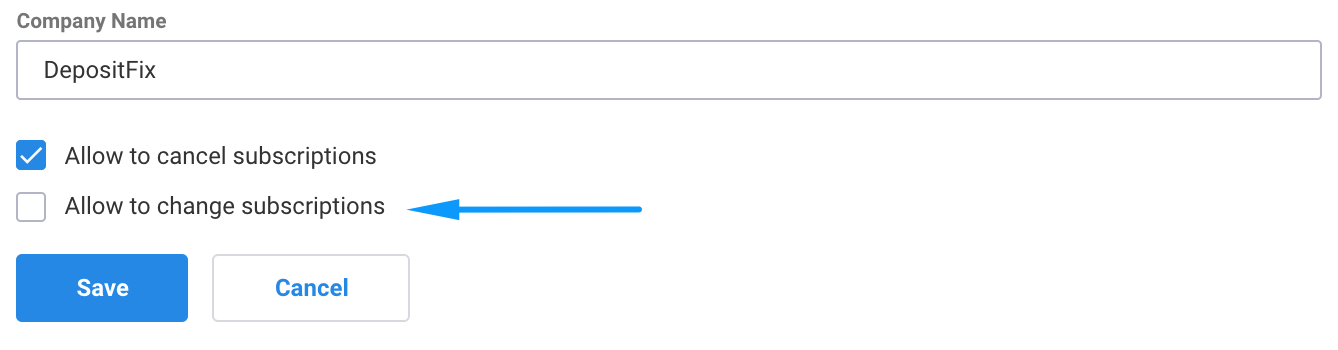
2. This will open up your billing profile settings, make sure Allow to change subscriptions is checked.
3. Select the subscriptions you want to show your customers when they update.
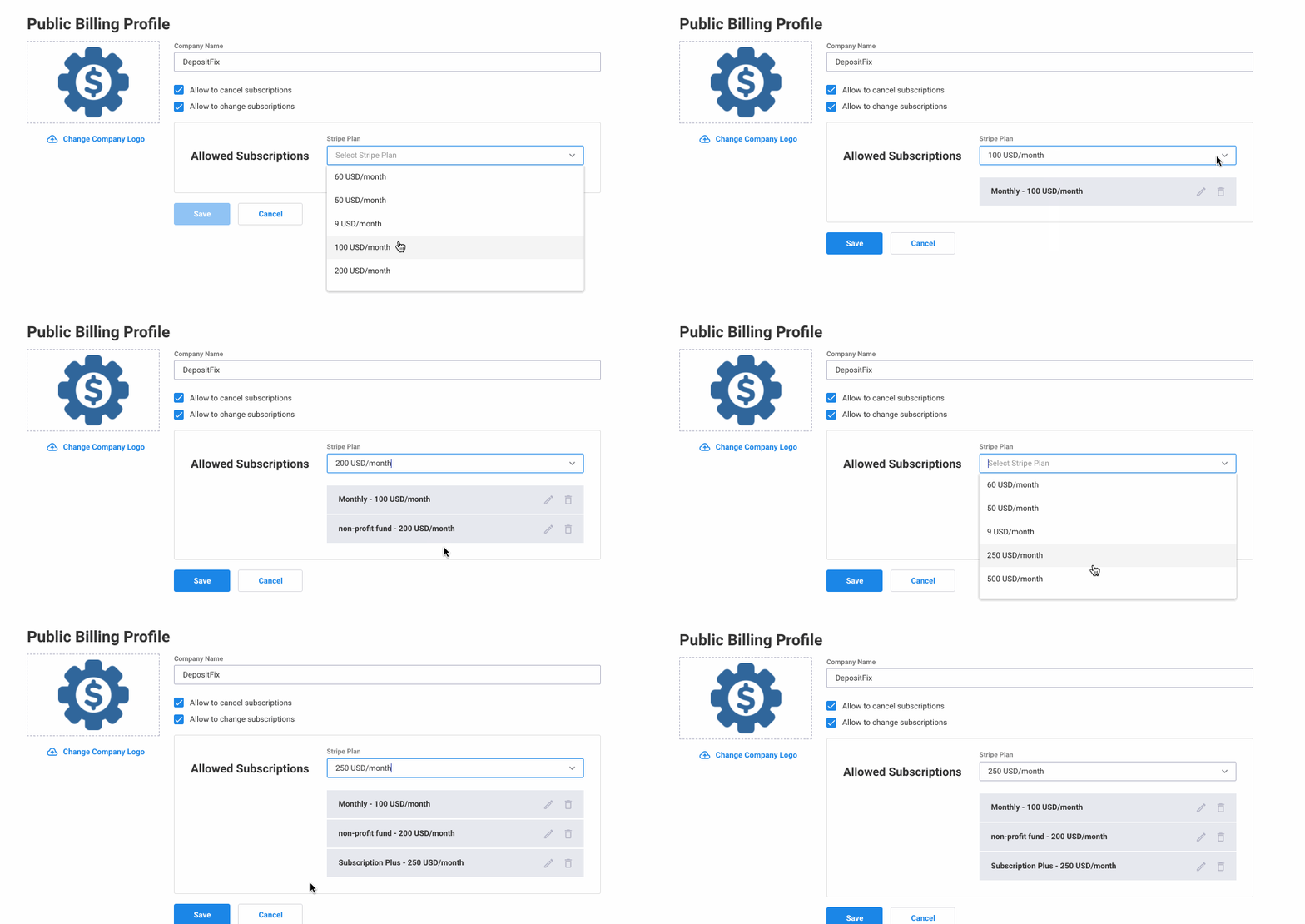
4. Click Save
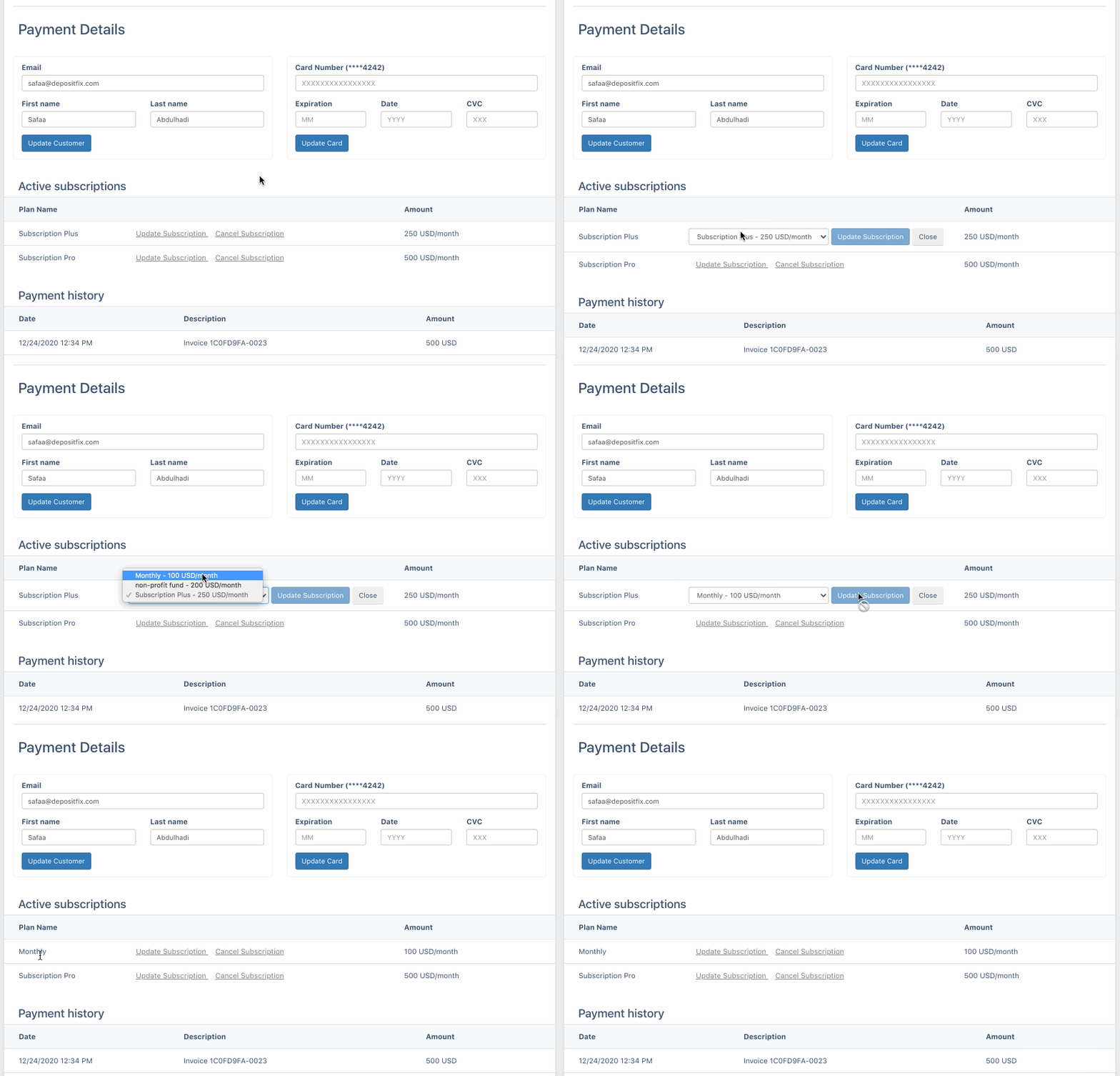
On the billing profile, customers will be able to see "update subscription" and choose the new subscription they want to update to.
You can change the styling on your billing profile and use custom CSS to match your design, more information here.