You can use CSS and styling options to customize your forms further
- Styling HubSpot Fields
- Styling DepositFix Forms
- Styling DepositFix Fields Using CSS
- Styling Stripe Card Fields
- Frequently Used CSS
Styling HubSpot Fields
You can use the style option in your HubSpot forms to change your HubSpot field styling (i.e label color, font size, etc) more information on styling your HubSpot forms here.

On DepositFix, Open the Advanced Options on your form builder and check Apply original HubSpot form styles to ensure that your styling is passed through to DepositFix.

Once you embed the form on your landing page, it will show the form with all the styling changes you made on the original HubSpot form.
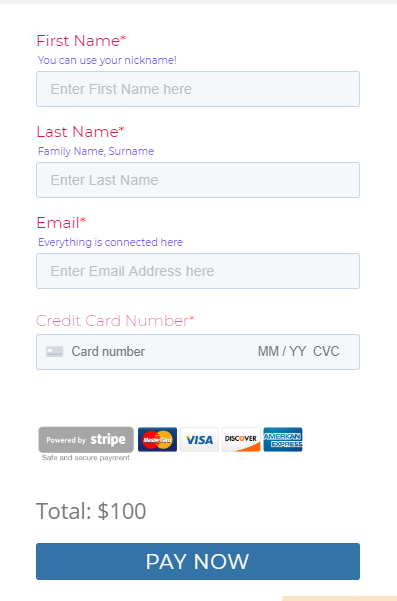
Styling DepositFix Forms
You can change your form styling (i.e. colors, font size, font family, etc) from the Styling tab in your form builder.
In the form builder, click on the Styling tab.
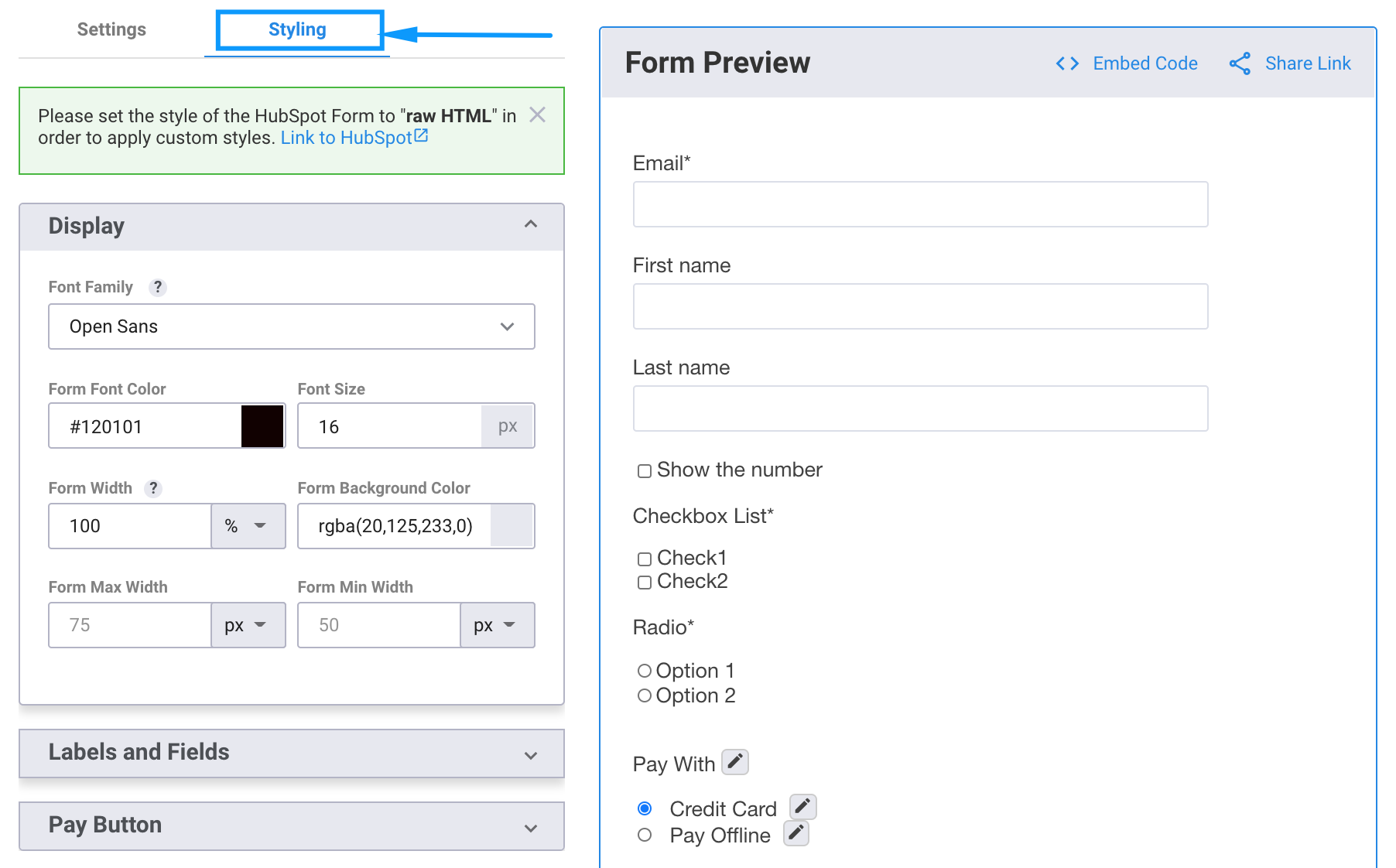
The Display section is where you can change the main elements for the whole form, font color, font size, background color, etc.
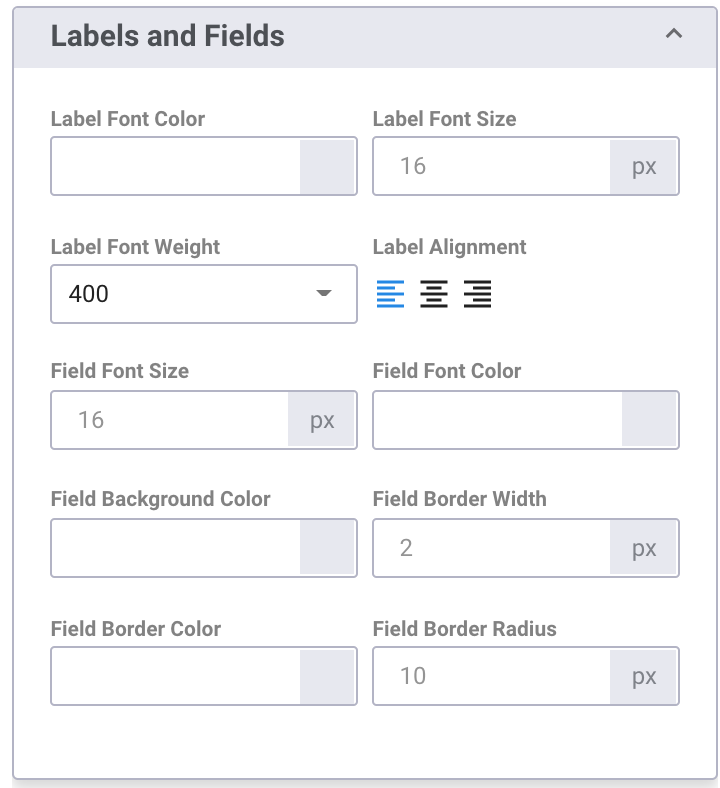
The Labels and Fields section is where you can change the styling for labels and fields specifically.
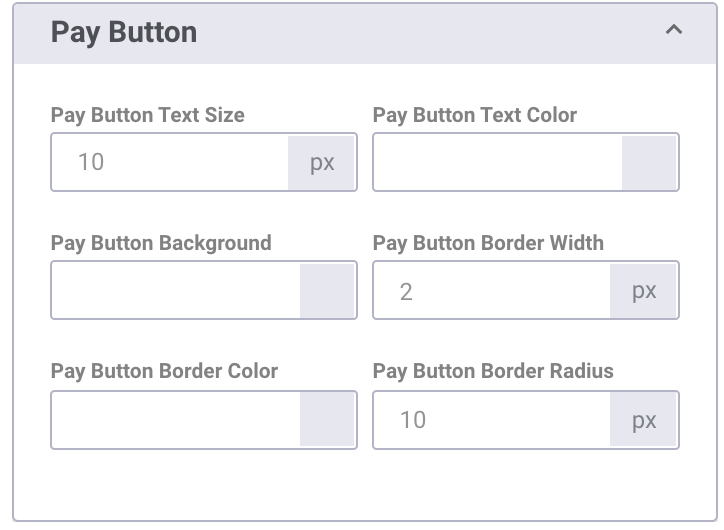
And the Pay Button section is where you style the pay button/form submissions button.
Styling DepositFix Fields Using CSS
You can use the CSS Style field on your DepositFix form builder, to apply more styling to your form.
To use this field, from your form builder, scroll to Advanced Customization >> CSS Styles
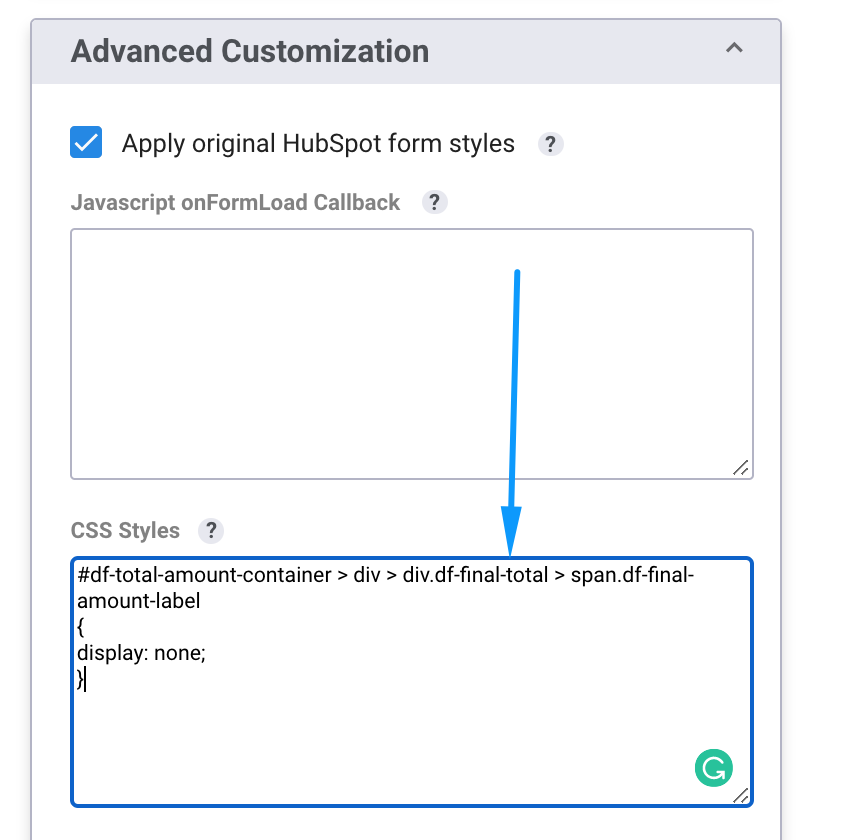
This will allow you to apply more CSS to DepositFix fields, as well as the form overall.
If you're looking to apply CSS to a specific element, this video will show you how you can get the exact element CSS path:
Note: It is important to always check the changes in the landing page itself, rather than the preview in the form builder, that way you can see the live changes applied with the rest of page code, and if there's any conflict/inconsistency.
You might encounter an issue with the spacing with the credit card field from your regular HubSpot fields. Add this code to make adjustments.
#df-card-container #stripe-form-block {
        padding-top: 10px;
  }
Styling Stripe Card Fields
Stripe uses their own custom objects for styling, so if you're looking to change the styling for the Stripe credit card field, you need to use Stripe's CSS objects, listed here.
Example:
You can change the text colour of the card number by adding this CSS code to your form builder.
{  base:
    {    color: '#ffffff'  }
}

Frequently Used CSS
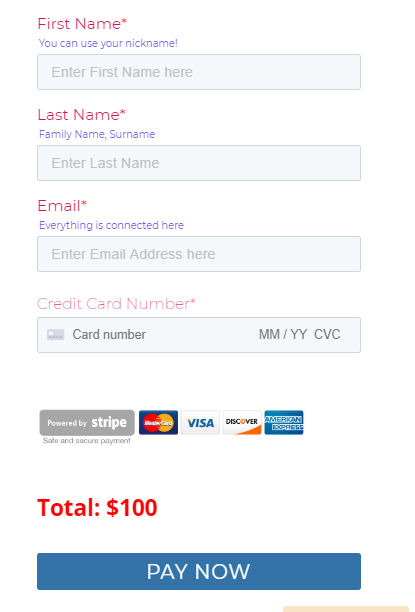
Editing the Total Text
You can use these attributes to edit the style of Total Amount text.
#df-card-container .df-final-total  {
    font-size: __px;
    padding-top: __px;
    padding-bottom: __px;
    font-weight: ;
  color: red;
}
Editing the Pay Now button
You can use these attributes to edit the style of Pay Now button.
#df-card-container #df_buybtn {
        background-color: ____;
        color: _____;
        border-color: _____;
        border-radius: ____px;
    }
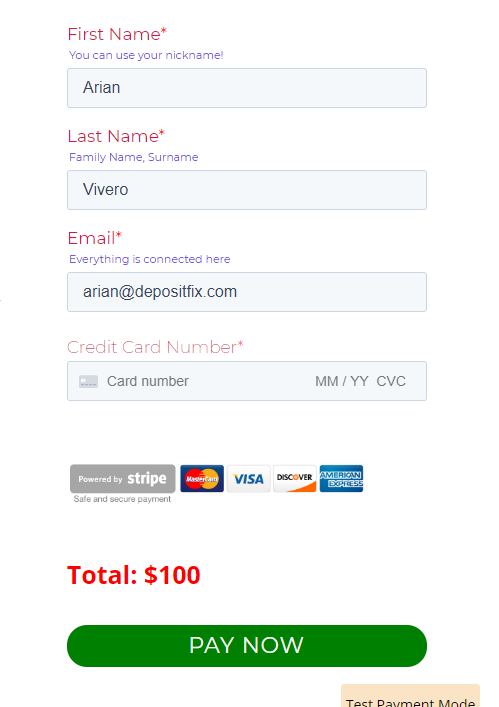
For some dynamic mouse hover option, you can use these attributes.
#df-card-container #df_buybtn:hover {
        background:______;
        color: _____;
        border-color: ______ ;
    }
You can also use our Translations Feature document to edit the text from your DepositFix fields.
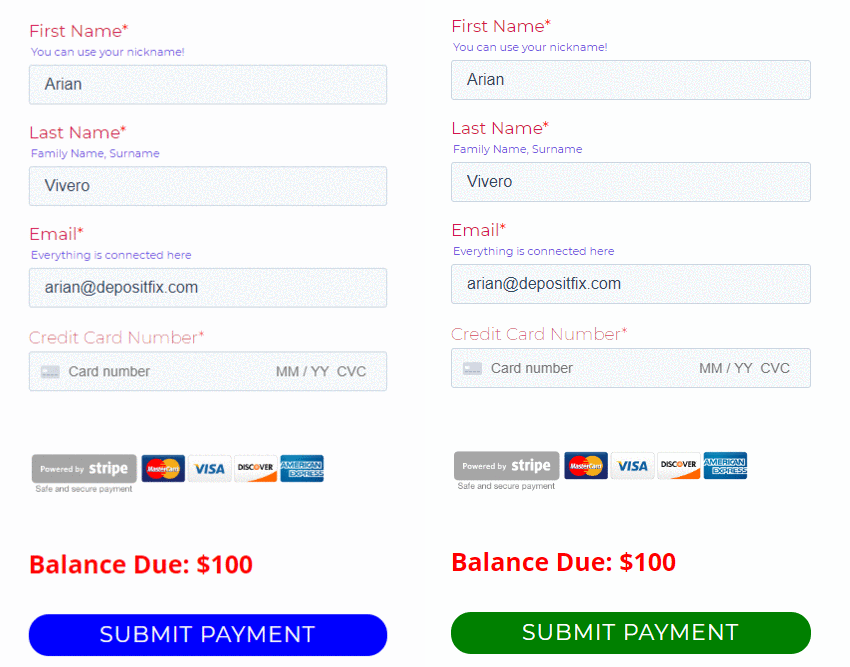
Fully styled form and full code below for reference.
<script src="https://widgets.depositfix.com/v1/app.min.js"></script>
<script type="text/javascript" id="df-script">
    DepositFixForm.init({
        formId: 'dff87839-8633-4a43-b38d-bc669c74e814',
        portalId: '4269803',
        translations: {
          PAY_NOW: 'Submit Payment',
          TOTAL: 'Balance Due'
                  }
    });
</script>