In HubSpot, a deal represents an ongoing transaction that a sales team is pursuing with a contact or company. DepositFix lets you create deals automatically with every transaction.
This integration with deals also allows you to run HubSpot attribution reports automatically.
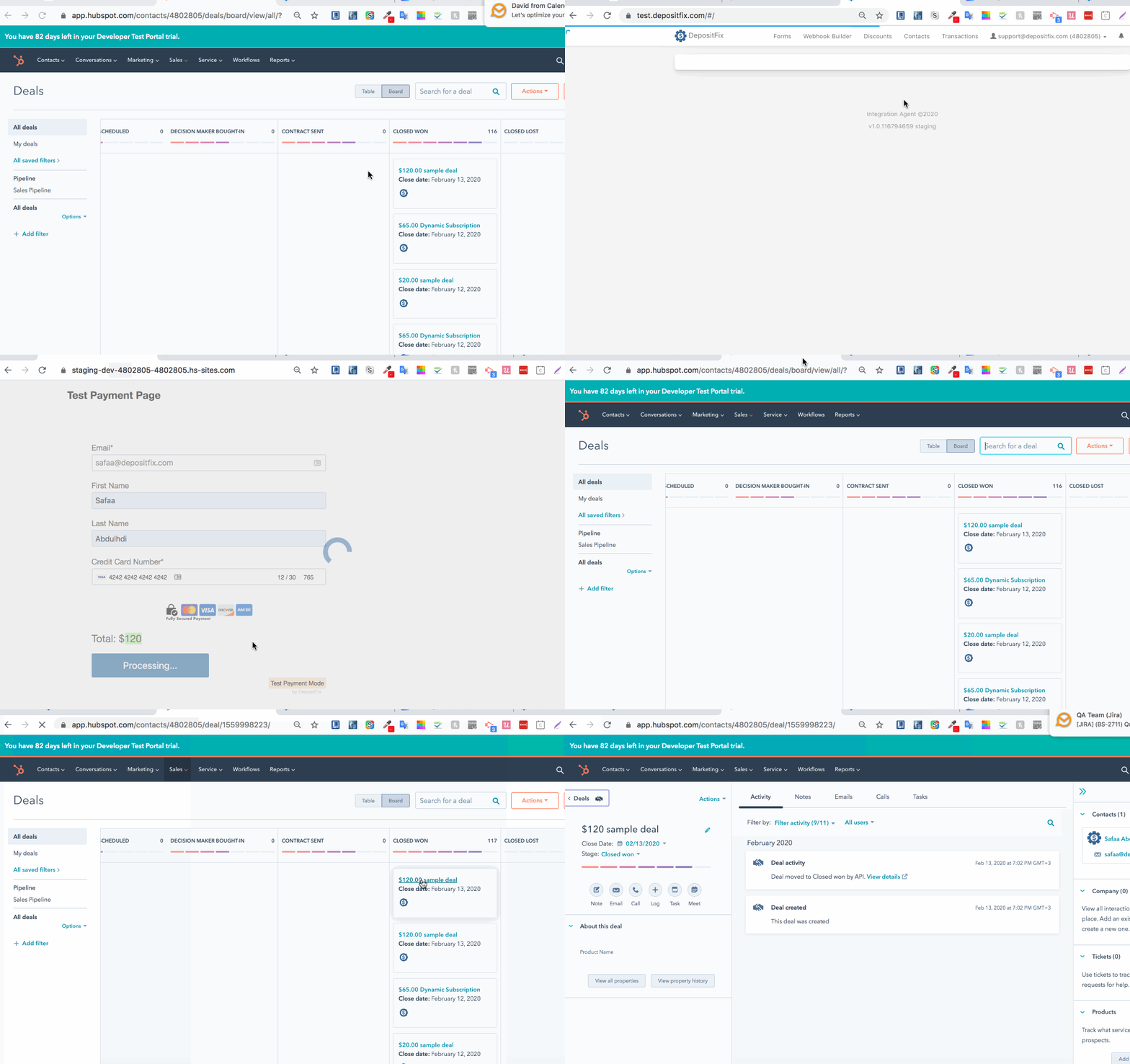
On DepositFix:
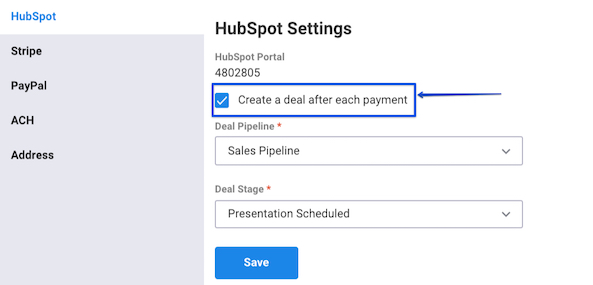
To enable this deals creation, click on Settings > HubSpot Settings on your DepositFix dashboard.

And then enable "Create a deal after each payment", on the HubSpot tab.
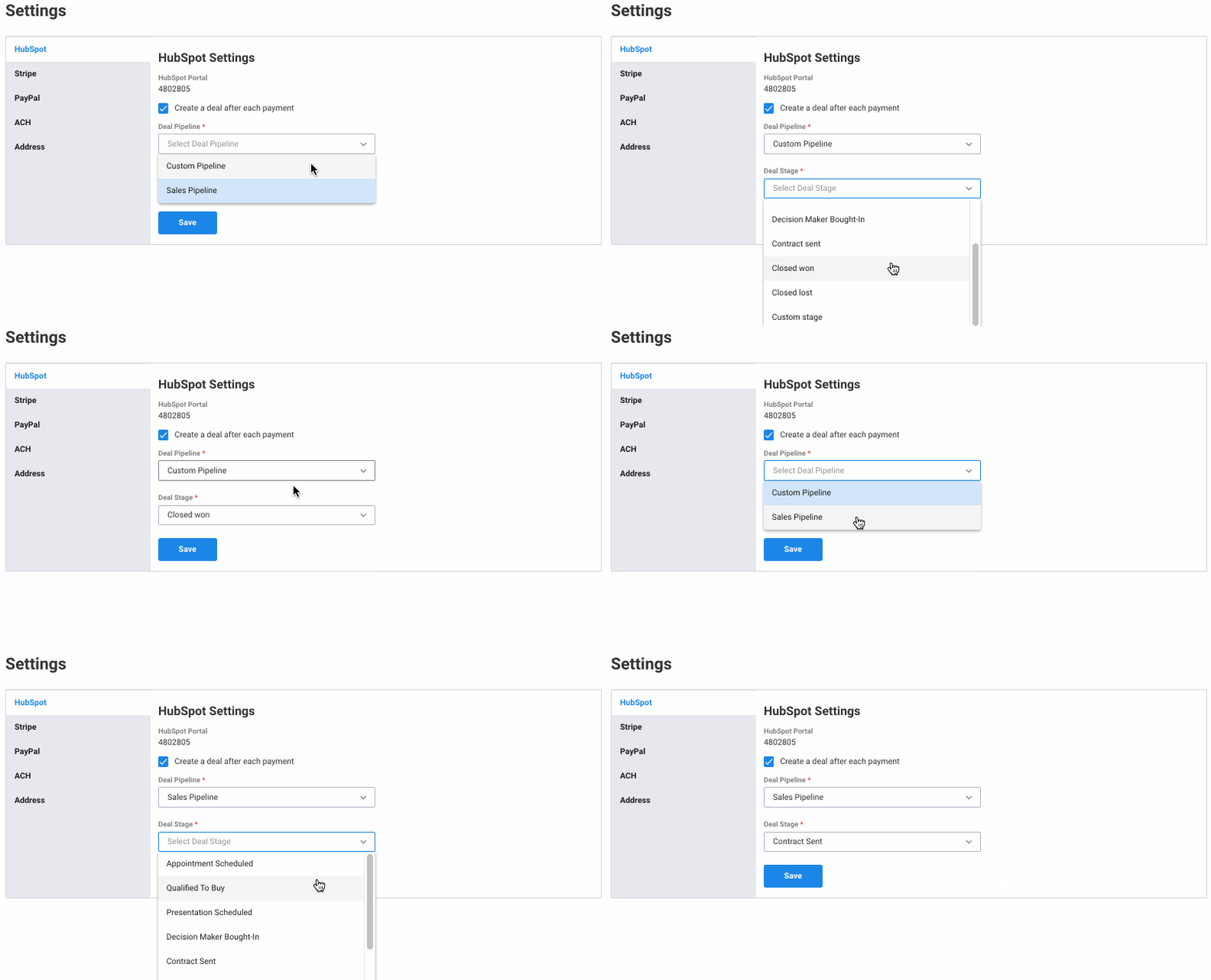
After that, select the pipeline and deal stage you'd like the deal to fall into (if you're looking to use different pipelines and stages for different forms, you can use our custom deal properties).
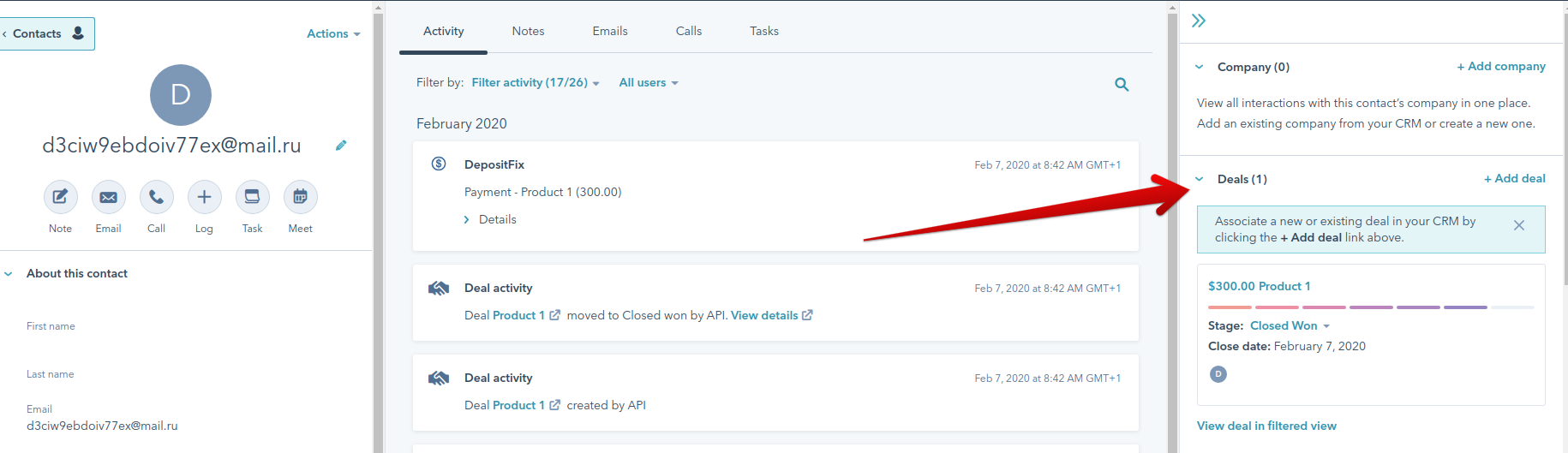
On Hubspot:
Once you've enabled deals creation, a deal will be created in HubSpot automatically every time the form is submitted and a successful transaction is made, the deal will be associated with HubSpot Contact that specified on the submitted form (using the email field).
You can also view all the created Deals by clicking on "Sales" and then "Deals".

DepositFix creates line items inside the deals for each product, discounts,s and tax amounts. This is especially helpful when there are multiple products in order.
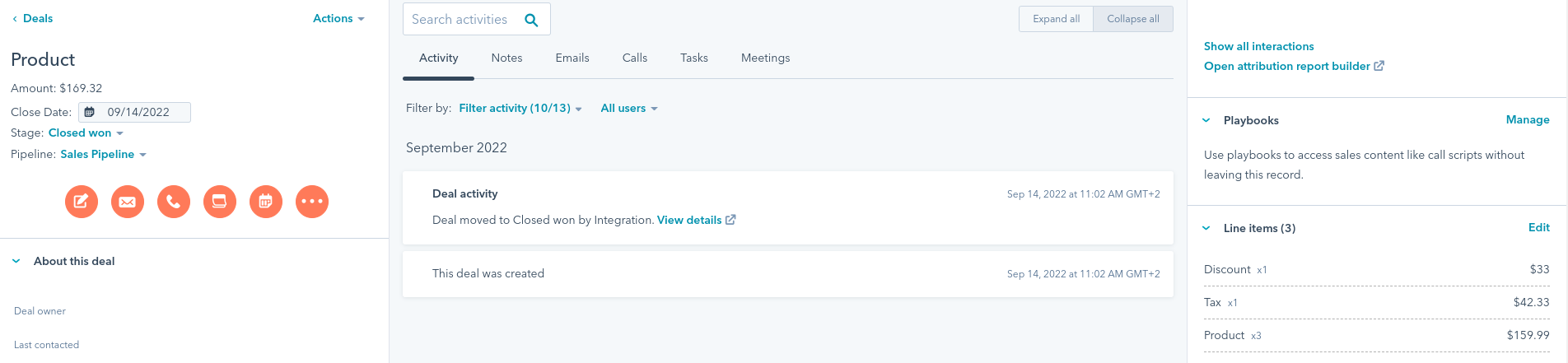
Note: If you don't see line items in your deals, please re-connect your HubSpot to DepositFix, from DepositFix Settings.
The created deal will have the following main properties:
Deal name: This is the product name; if the form has multiple products or add-ons, then the name will be a comma-separated name of multiple products.
Amount: This is the amount of the transaction.
Close Date: This is the date the form was submitted.
Stage: This should always be "Closed won."
Associated Contact: This is the contact who submitted the form.
It will also have the following payment deal properties:
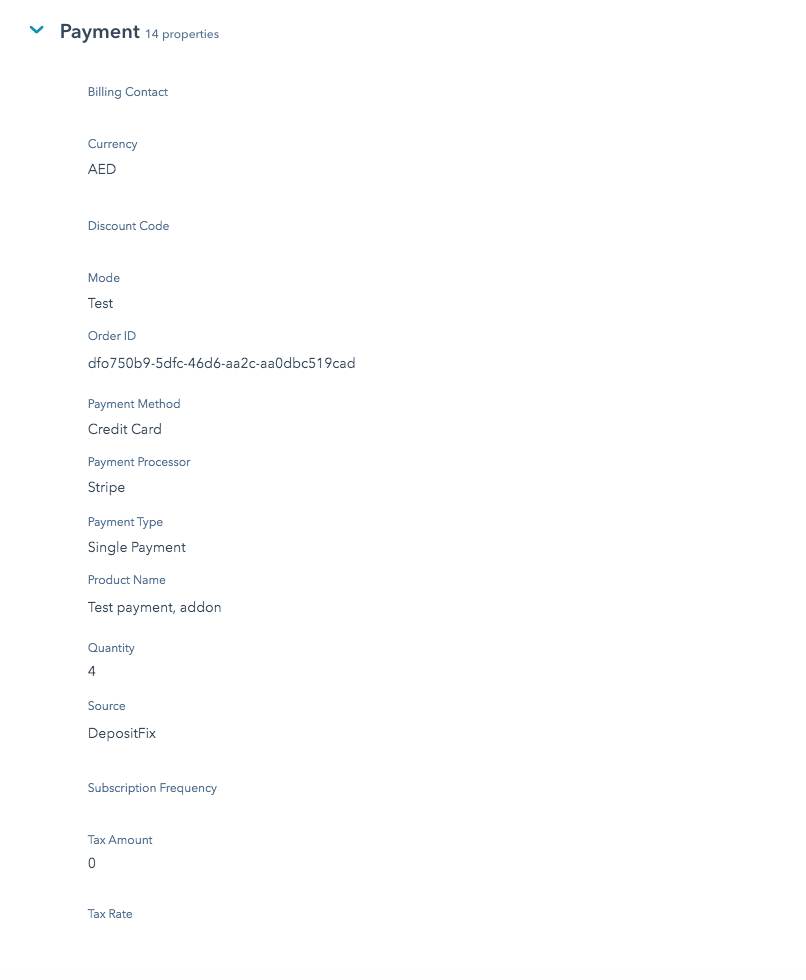
Billing contact: Contains the main contact when using multiple contacts in your form.
Currency: The currency the payment was paid in.
Discount code: The discount code used on the form, if any.
Mode: whether your form is connected to Live or Test payment mode.
Order ID: The ID of the order made for easier order tracking.
Payment Method: Credit card, Stripe, Google pay, etc.
Payment processor: Stripe, PayPal, or offline.
Payment Type: Single payment or subscription.
Product Name: The product name on your DepositFix form.
Quantity: Quantity of the purchased product.
Source: DepositFix payment
Subscription Frequency: Weekly, monthly, annual, etc.
Tax amount: Any additional tax amount applied to the total amount.
Tax rate: What is the tax rate (%) applied to the product (if any).