Apple Pay lets you make secure purchases in stores, in apps, and on the web. And send and receive money from friends and family right in Messages, Apple Pay will only work with DepositFix on iPhone devices. To set up Apple Pay on your phone, please follow the steps in this article.
Apple Pay is only supported in selected countries, check if your country is supported here.
Setting up Apple Pay requires two main steps:
- Step 1: Hosting the Apple Pay file on HubSpot Domain Root
- Step 2: Setting up Apple Pay on Your DepositFix Form
Hosting the Apple Pay file on HubSpot Domain Root
DepositFix Supports Apple Pay, for quick seamless transactions on mobile phones, before you set up Apple Pay, you need to set up the host Apple Pay file on HubSpot domain root level, and then you should be able to select Apple Pay from the form builder, and process payments in just a click!
(make sure that you follow the steps below in order, starting with the steps in Hubspot, and then moving to Stripe).
In Hubspot:
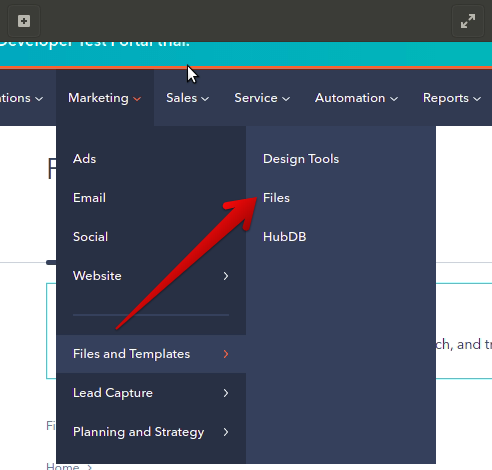
- From your HubSpot Dashboard, go to "Marketing" → "Files and Templates" → "Files"
- Create a new hidden folder with the name ".well-known" (the dot prefix means the folder is hidden)

- Click on the ".well-known" folder to access it
- Upload Apple Developer Merchant ID file into this folder: apple-developer-merchantid-domain-association
- After file has been uploaded, click on the file name. This will open up a popup on the right side of the screen.
- In this popup, locate the "File URL" dropdown, and select the connected domain URL, and NOT HubSpot CDN.
- Copy the URL of the file to your clipboard, as it will be used later on in the next steps. (It's mandatory to use a domain-based URL and not HubSpot CDN URL for this file)
- Click on the configuration icon in the top-right menu, Choose "Domains & URLs" and then click on "Add URL Redirect"
- In the "Original URL" field, add the following URL: HTTPS://{domain.com}/.well-known/apple-developer-merchantid-domain-association (where domain.com is your domain name)
- In the "Redirect to", add the URL of the file that we copied earlier on step 7. It should have the following syntax: HTTPS://{domain.com}/hubfs/.well-known/apple-developer-merchantid-domain-association
- Now that you've added the URLs, click on the "More options" section, and set the "Redirect Style" to "Proxy"

In Stripe:
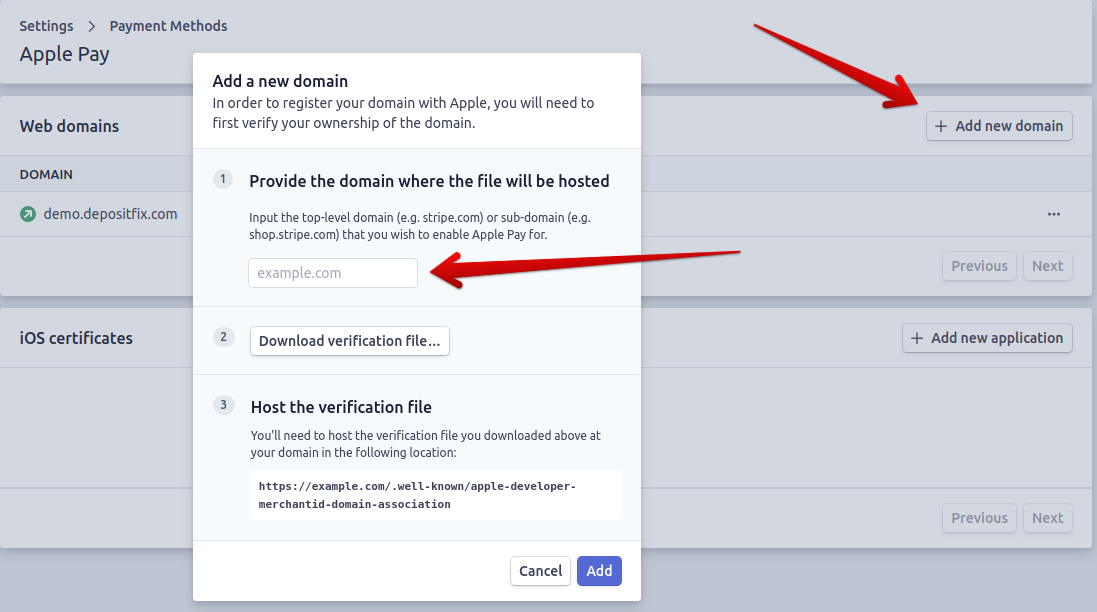
- In your Stripe dashboard, go to Accounts > Payments > Apple Pay, or follow this link: https://dashboard.stripe.com/account/payments/apple_pay
- Click on "Add new domain"
- Enter the root domain/sub-domain of where you would like to use your Apple Pay, and then click "Add".
(repeat the same process for every domain/sub-domain separately)
- Now that the set up is finished on both HubSpot and Stripe, Stripe will try to verify the domain by accessing your URLs on the root level of your domain, and check if the file is there, and return a successful result.
Setting up Apple Pay on Your DepositFix Form
- In your form builder, add a new product or multiple products, Apple Pay works with single payments, subscriptions, and donation product types.
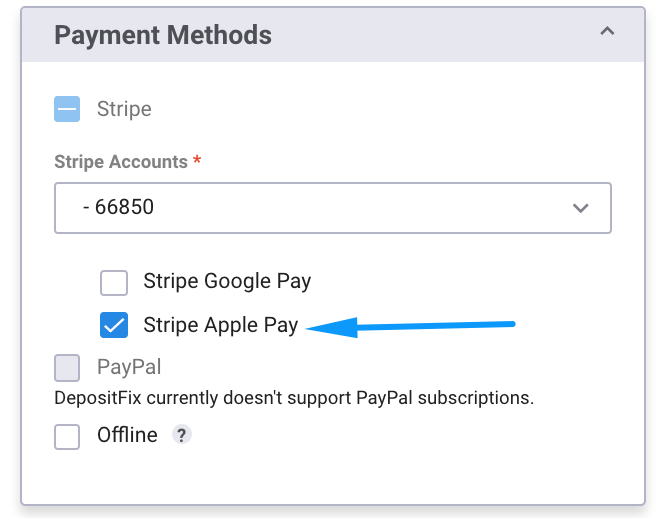
- Scroll down to "Payment Methods" at the bottom of your form builder, make sure "Stripe" is checked (Apple Pay is only available through Stripe payments, NOT PayPal), and then check "Apple Pay"
- Click on "Publish" to publish your form.
When you're done with the setup, your form should have the Apple Pay option when accessed on iOS devices.
