You have now generated the code that transforms a normal HubSpot form into a Payment form. Now you are ready to learn how to add the form to your website or landing page.
To embed your DepositFix form, you will first need to get your form's embed code. Which you can get from the form builder itself.
From the form builder, click on Embed Code, and copy the code from the small pop-up.

Now that you have your embed code, you are ready to embed your form into your website page.
- Embedding your form on a HubSpot page
- Embedding your form on a Wordpress page
- Embedding your form on a Wix page
- Embedding your form on a Squarespace page
Video:
Embedding your form on a HubSpot page
1. On your HubSpot Marketing Hub, open the website/landing page in Edit mode. Click on Add new module.

Note: There are instances when the template used doesn't allow to add a new module. Go to Cannot Add Module To A Page to solve this.
2. Choose HTML and click Add module.
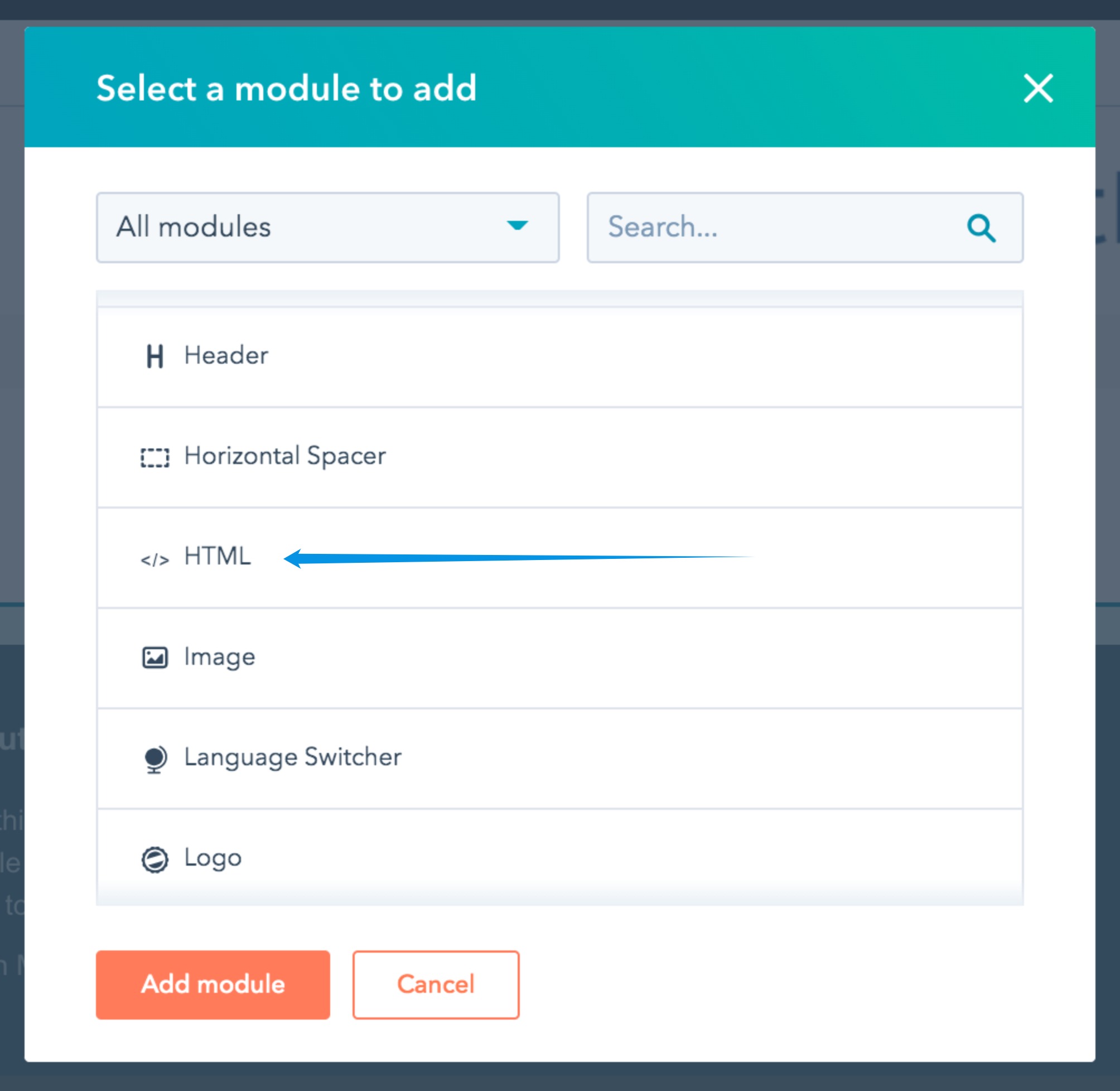
Note: There are instances when HTML is not on the list. Go to Missing Custom HTML Module in HubSpot to solve this.
3. Now that you've added the HTML module to your page. Click on it to open the edit box.
4. Paste the code that you copied earlier from the DepositFix Form Builder and click on Apply Changes.

Your DepositFix form should now be embedded on your page.
Note: You only need to embed the code once on your landing page. Any future updates to the form can be done from the DepositFix form builder, and will be automatically applied to the embedded form.
Embedding your Form on a Wordpress page
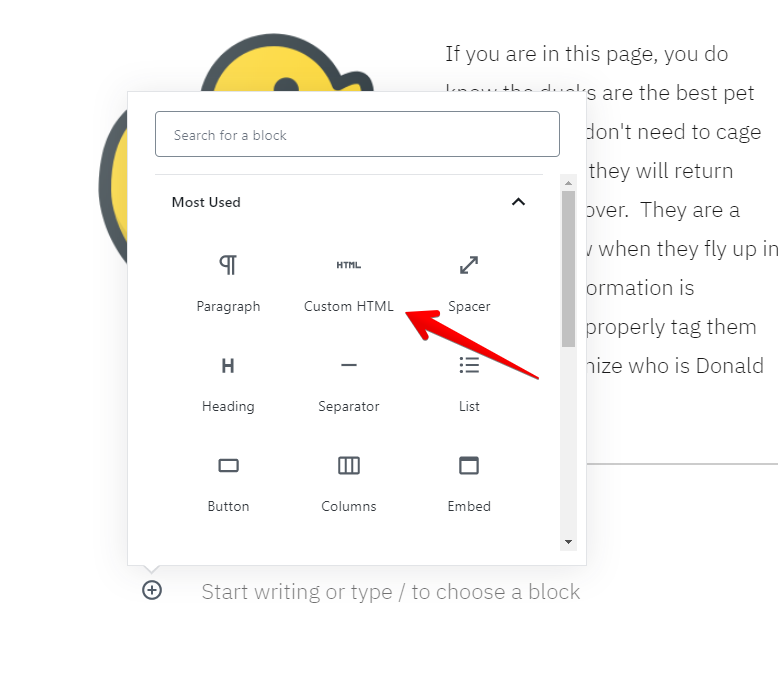
1. Add a custom HTML block on the desired area of your Wordpress page
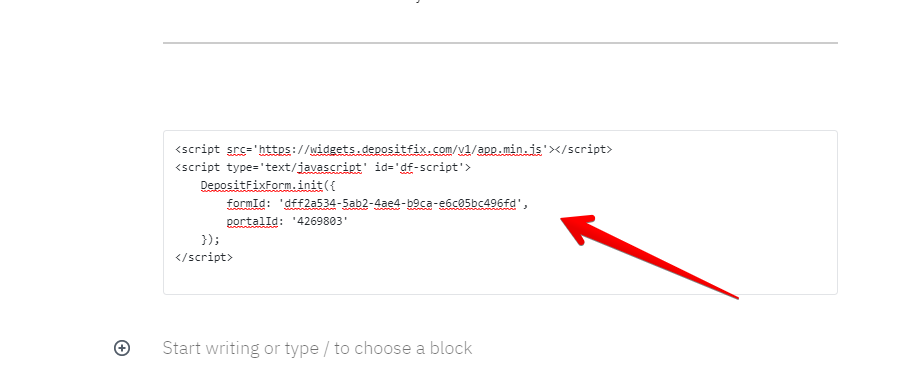
2. Paste the embed code that you copied earlier from the DepositFix form builder.
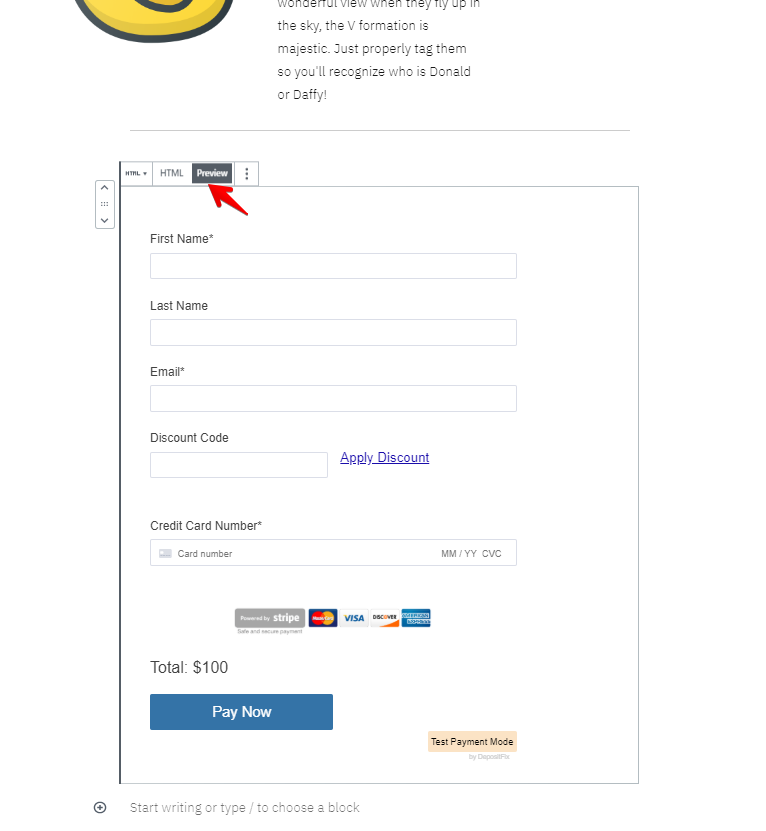
3. Click on Preview to see the actual form.
4. Update and publish the page and it is now ready to accept payments.
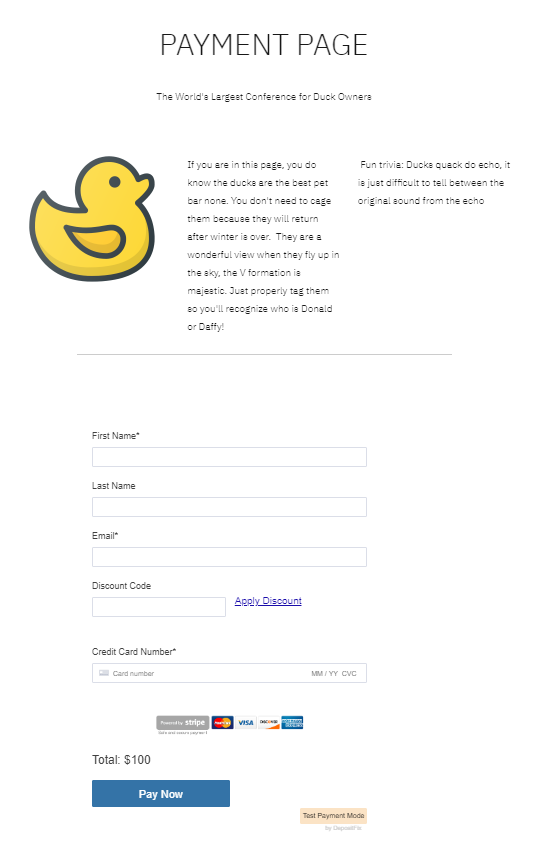
Embedding your form on a Wix page
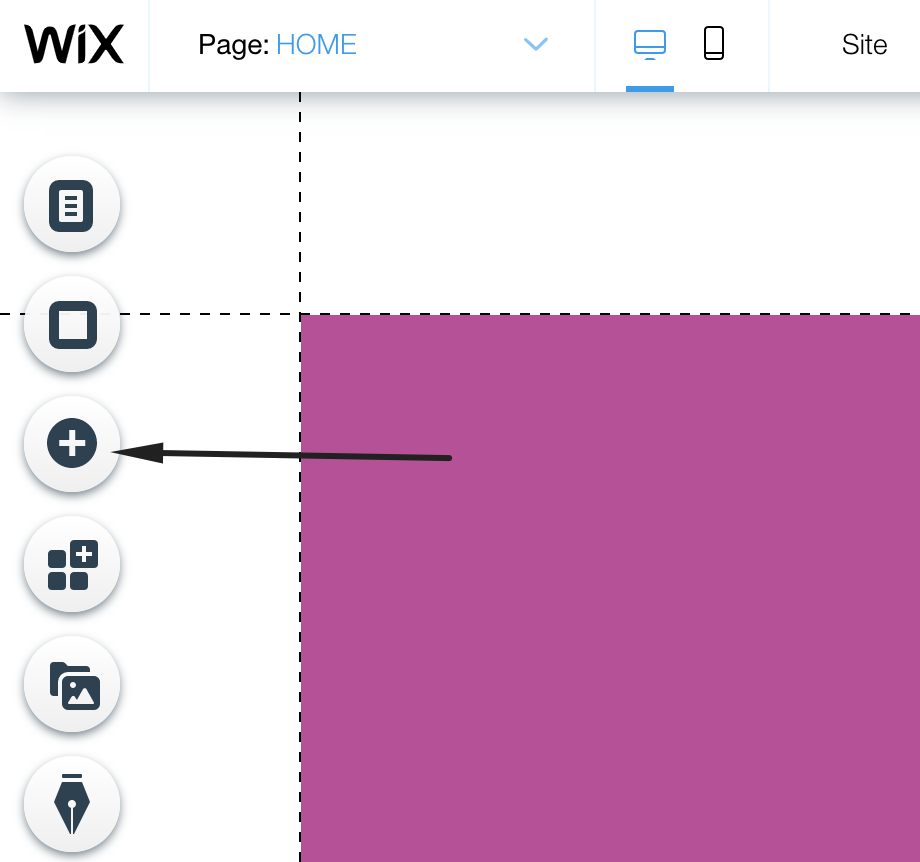
1. In your Wix site editor, click the "+" button to add an iFrame
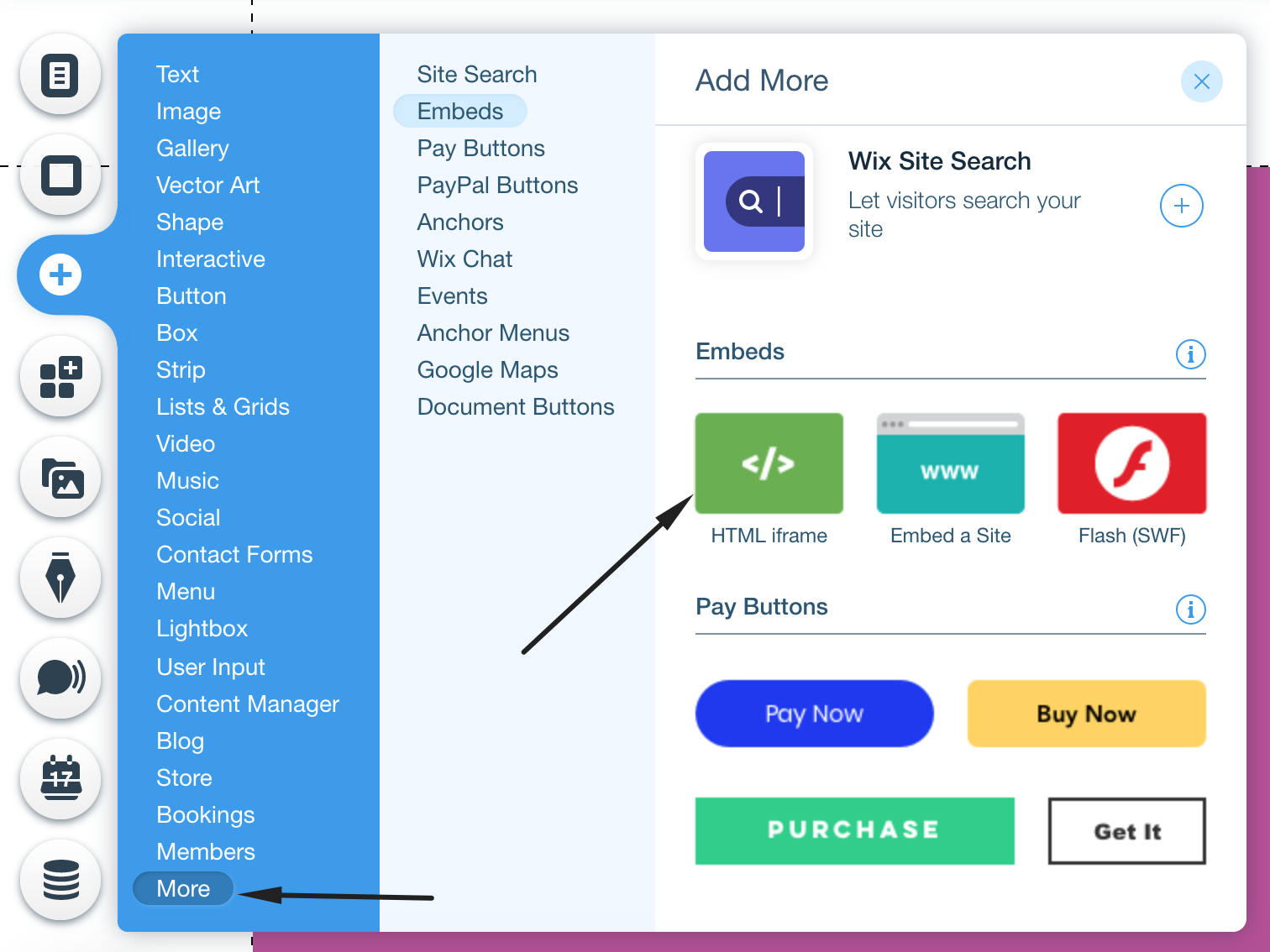
2. Select "more" and then select "HTML iFrame"
This will create a placeholder for your HTML iFrame
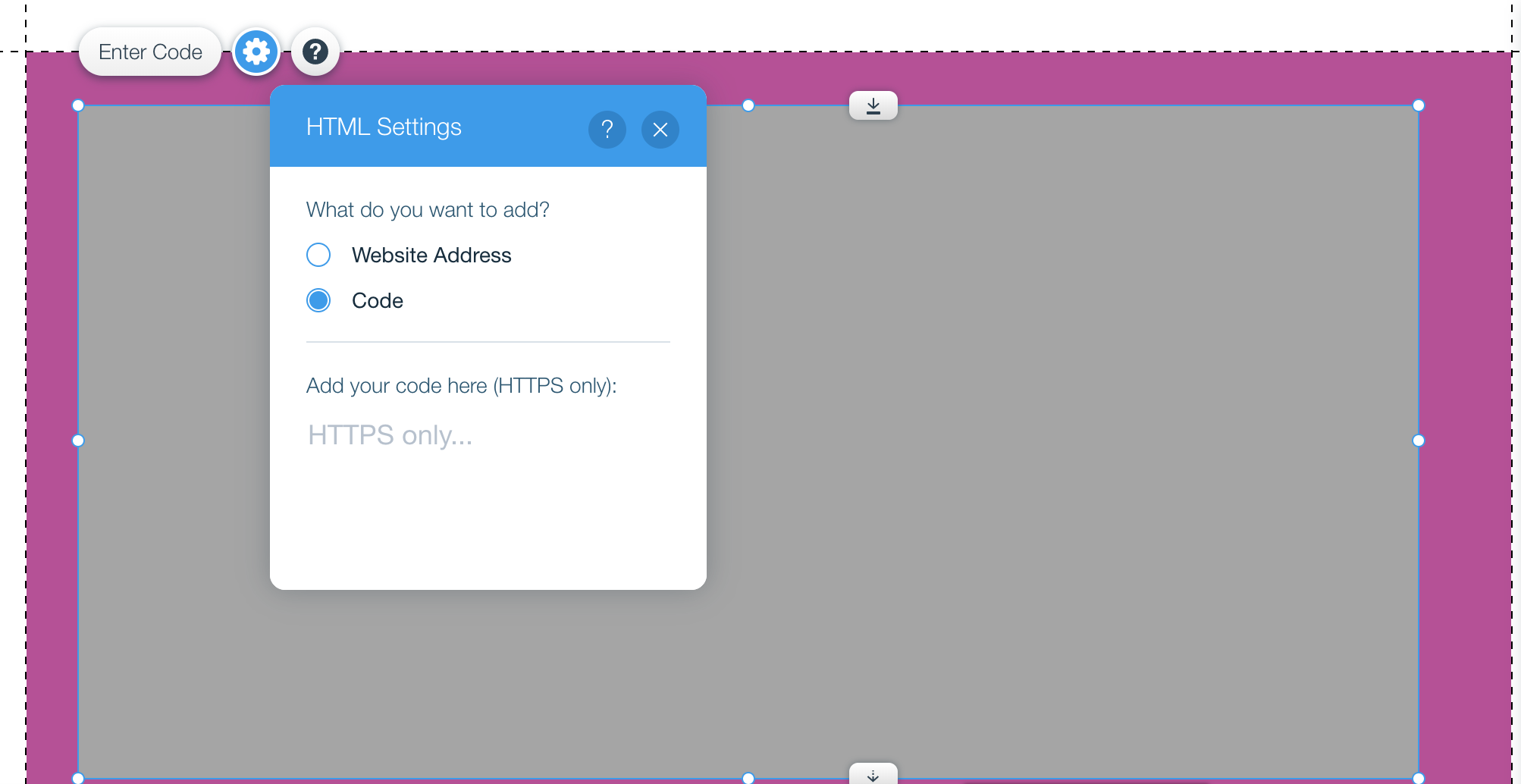
3. Now we need to add the embed code generated by DepositFix.
However, for it to work in Wix, we need to wrap this embed code with HTML tags:
<!DOCTYPE html>
<html>
<head>
</head>
<body>
----Your embed code here-----
</body>
</html>
So we just need to replace "----Your embed code here-----" in the snippet above, with the actual embed code from DepositFix form builder that you copied earlier, so it would look like the following:
<!DOCTYPE html>
<html>
<head>
</head>
<body>
<script src="https://widgets.depositfix.com/v1/app.min.js"></script>
<script type='text/javascript' id='df-script'>    DepositFixForm.init({        formId: 'dff098a8-7775-4c6e-8af3-0b1c3429ea7e',        portalId: '4832819'    });
</script>
</body>
</html>
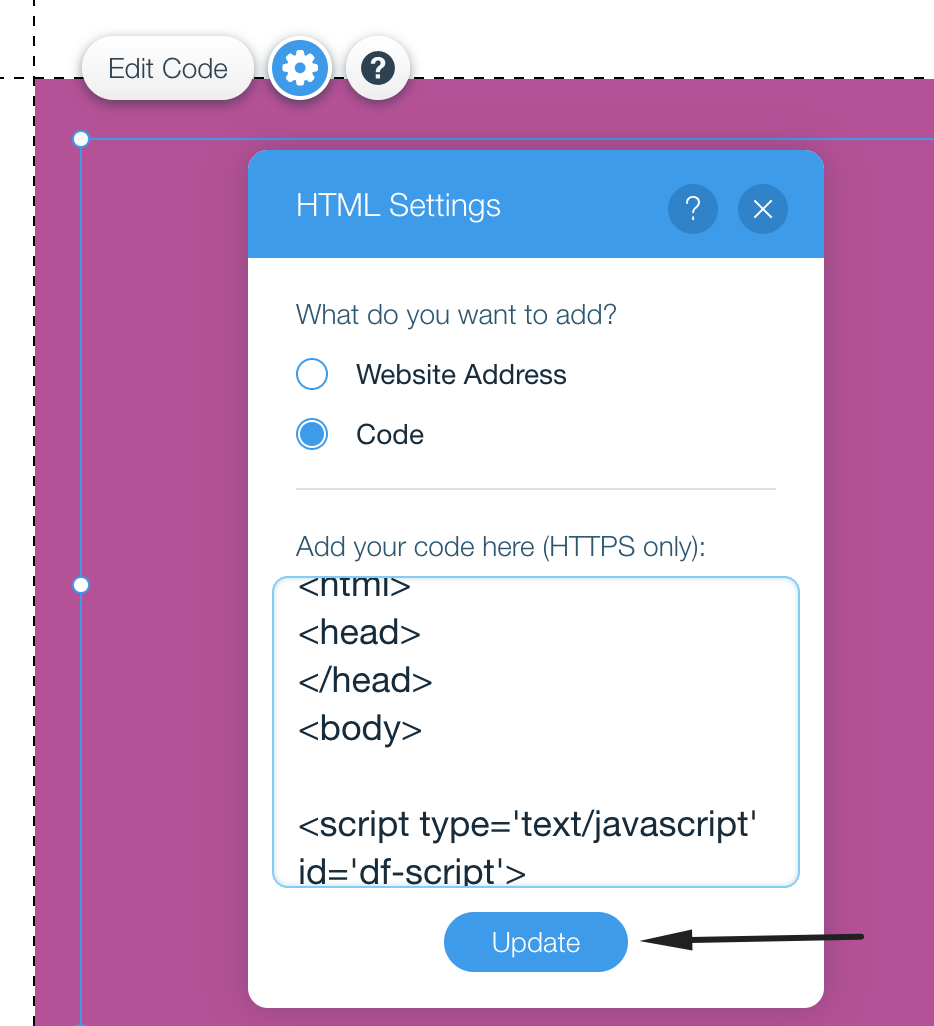
4. Paste the code in the code field, and click on "Update"
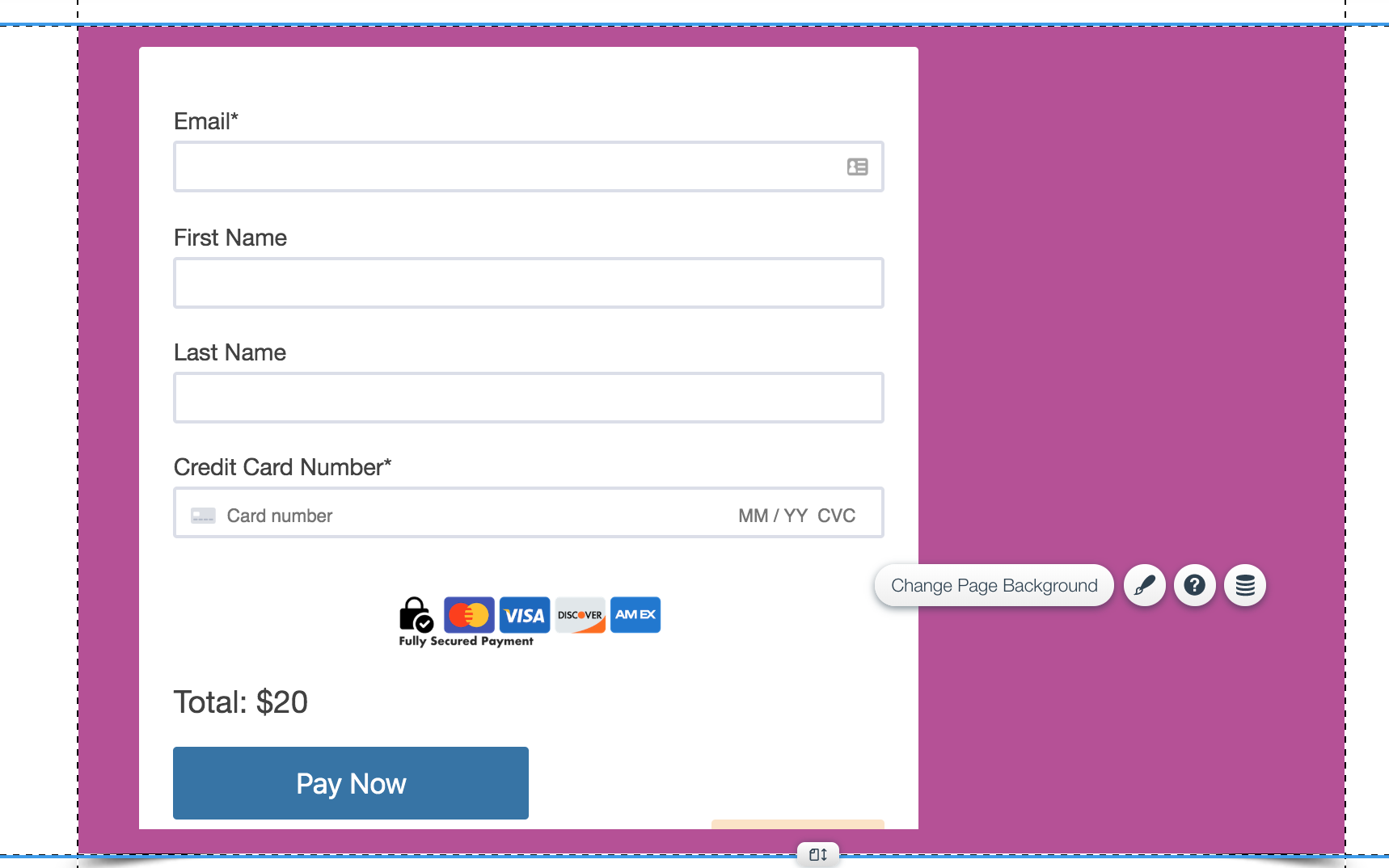
5. The form will be added to the page, and then you can click on Publish to launch your Wix page.
Embedding your form on a SquareSpace page
Note: JavaScript and iframe embeds are only supported in the Business plan in SquareSpace, more information on SquareSpace supported plans here.
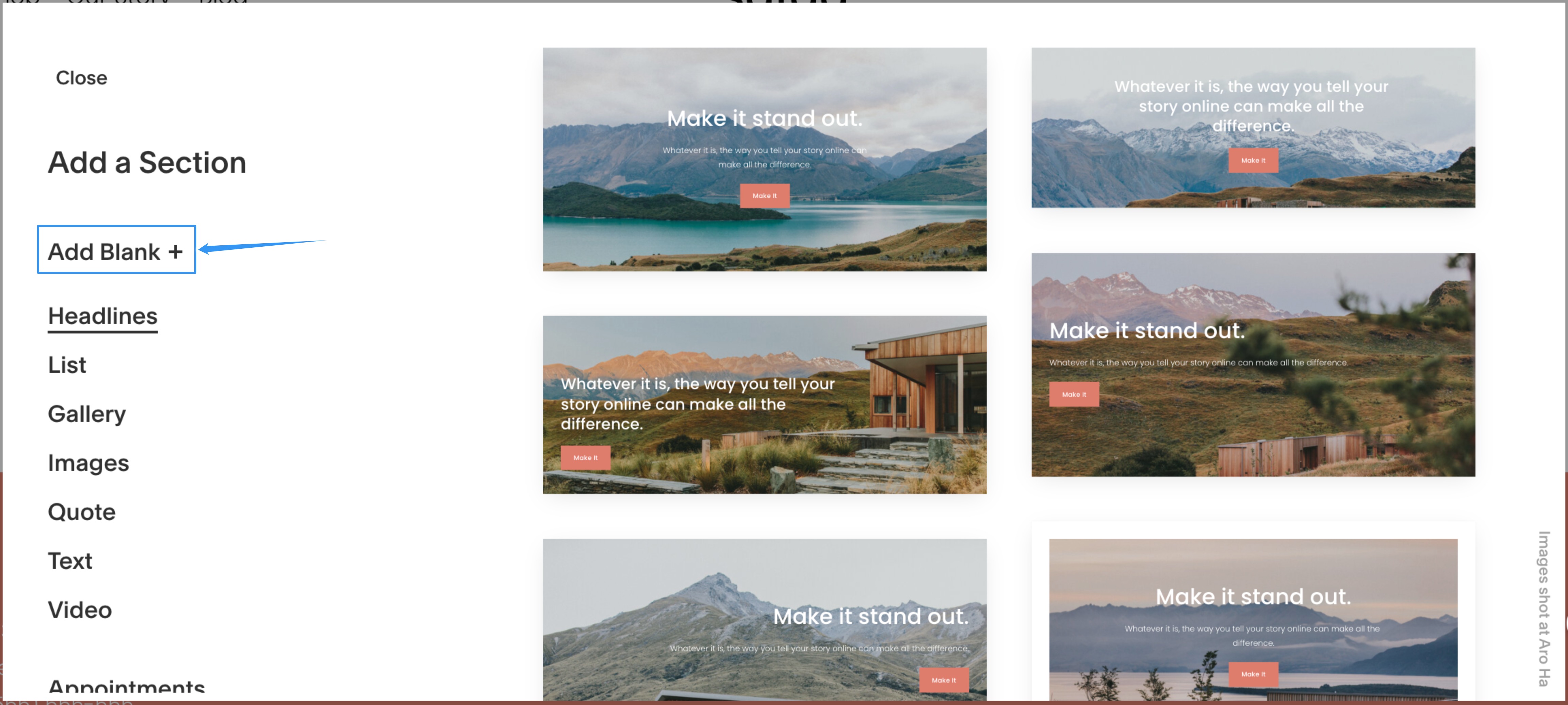
1. In your SquareSpace page, click on the + button to add content.

2. Click on Add Blank +
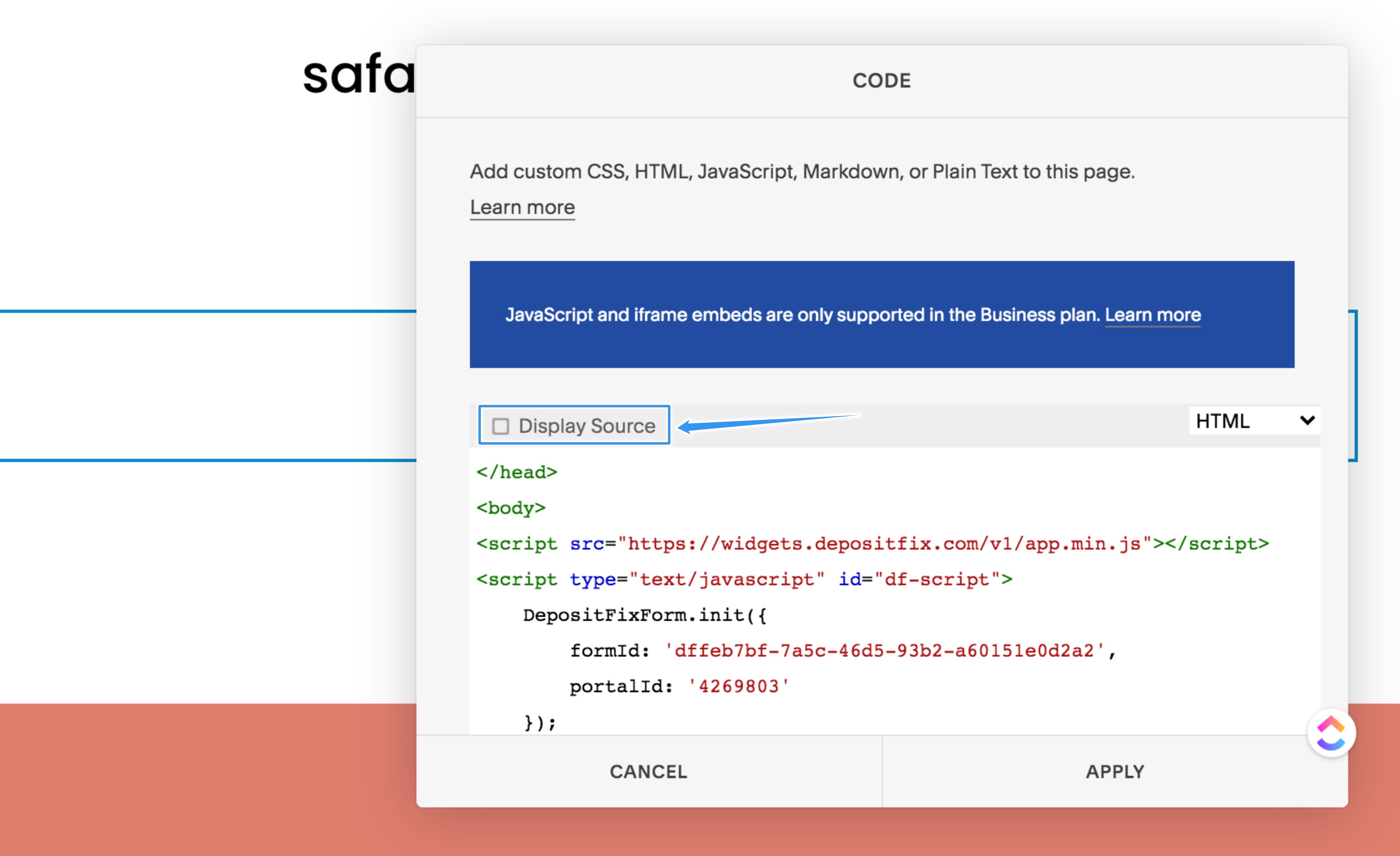
3. In the blank block, click to add content, and select Code
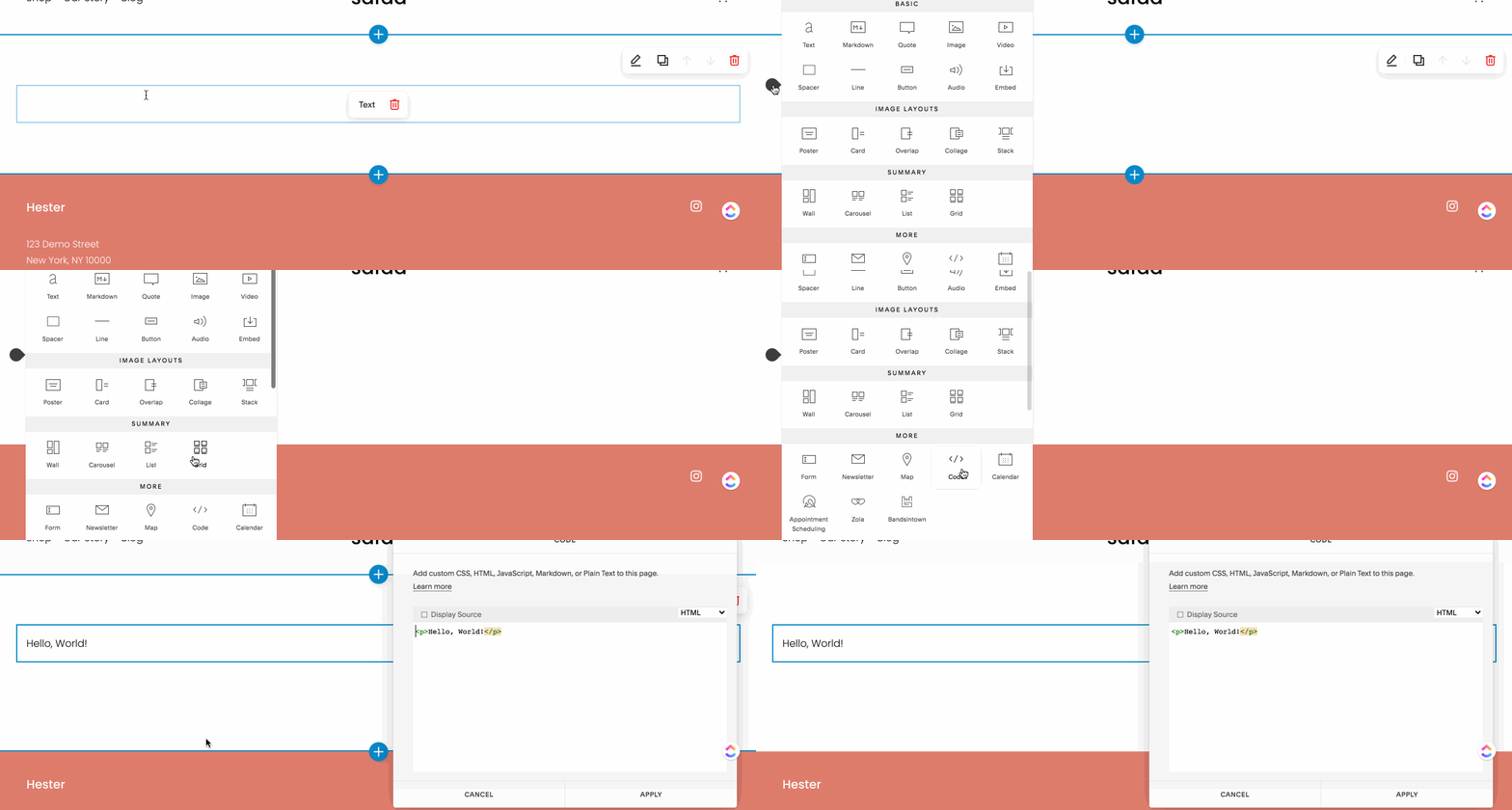
4. This will open up a small block of code, which is where we will add our DepositFix code.
However, for it to work in SquareSpace, we need to wrap this embed code with HTML tags:
<!DOCTYPE html>
<html>
<head>
</head>
<body>
----Your embed code here-----
</body>
</html>
So we just need to replace "----Your embed code here-----" in the snippet above, with the actual embed code from DepositFix form builder, so it would look like the following:
<!DOCTYPE html>
<html>
<head>
</head>
<body>
<script src="https://widgets.depositfix.com/v1/app.min.js"></script>
<script type="text/javascript" id="df-script">    DepositFixForm.init({        formId: 'dffeb7bf-7a5c-46d5-93b2-a60151e0d2a2',        portalId: '4269803'    });
</script>
</body>
</html>
Simply add the code and click Apply, and your DepositFix form will be embedded in your SquareSpace page.
Important: When embedding code in SquareSpace, make sure the "Display Source" checkbox is unchecked.
Next: Redirect After Payment
Back: Form Landing Pages